
How to reliably get a css selector for Google Tag Manager
- The AH Debugger selector picker gives you a validated CSS selector with a single click, no DevTools knowledge required.
- Prefer attribute-based selectors (data-*, id, name) over position-based selectors that break when the page layout changes.
- Avoid class names generated by CSS-in-JS frameworks. They change on every build and will silently break your GTM triggers.
- Test any selector in the browser console with document.querySelectorAll() before adding it to GTM.
Using AH Debugger Extension
The fastest way to get a CSS selector for any element on your website is to use AH Debugger Chrome Extension.
Install the Extension
Install AH Debugger from the Chrome Web Store
Optional: Pin the extension to your browser toolbar for easy access.
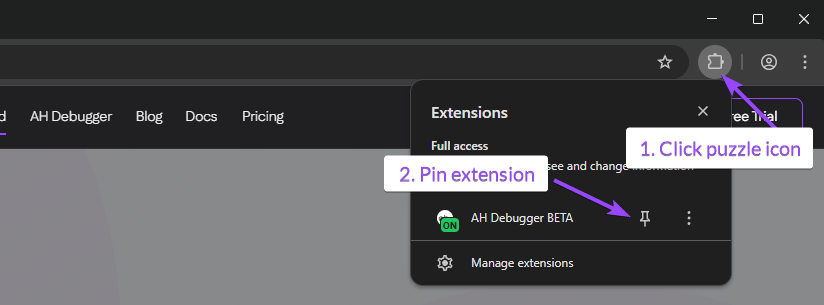
Get your CSS Selector
Once installed, navigate to the page where you want to get the CSS selector.
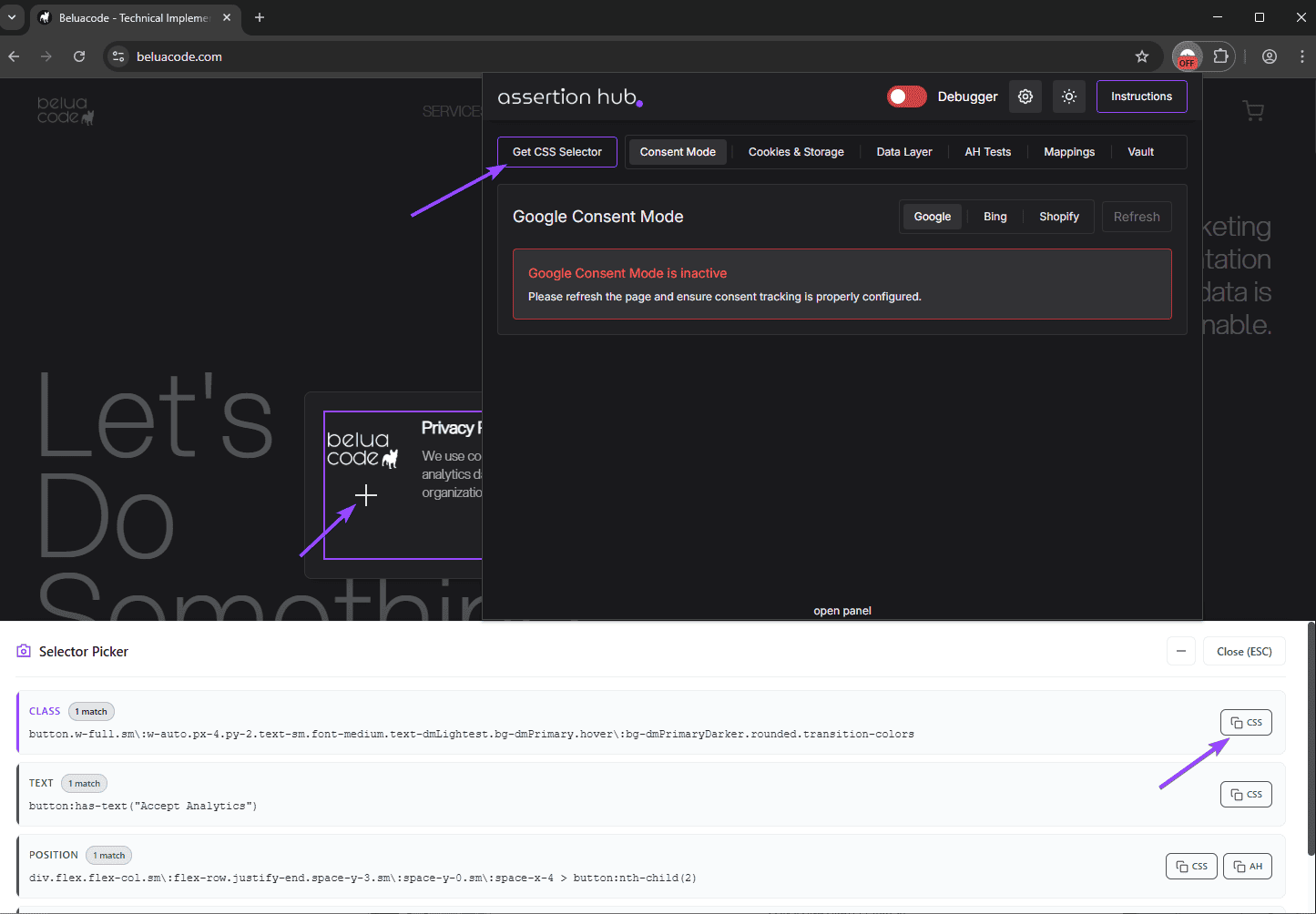
- Click on the extension icon in your browser and click on Get CSS Selector
- A minimizable window will appear at the bottom of the page and on click on the element, you will see the selectors
- Selectors shown will be ordered based on how many elements they match on the page giving you the unique selector at the top
- Click on any selector to copy it to your clipboard
Using Browser Developer Tools
If you prefer not to use an extension, you can also get CSS selectors manually through the browser’s developer tools.
Open Developer Tools
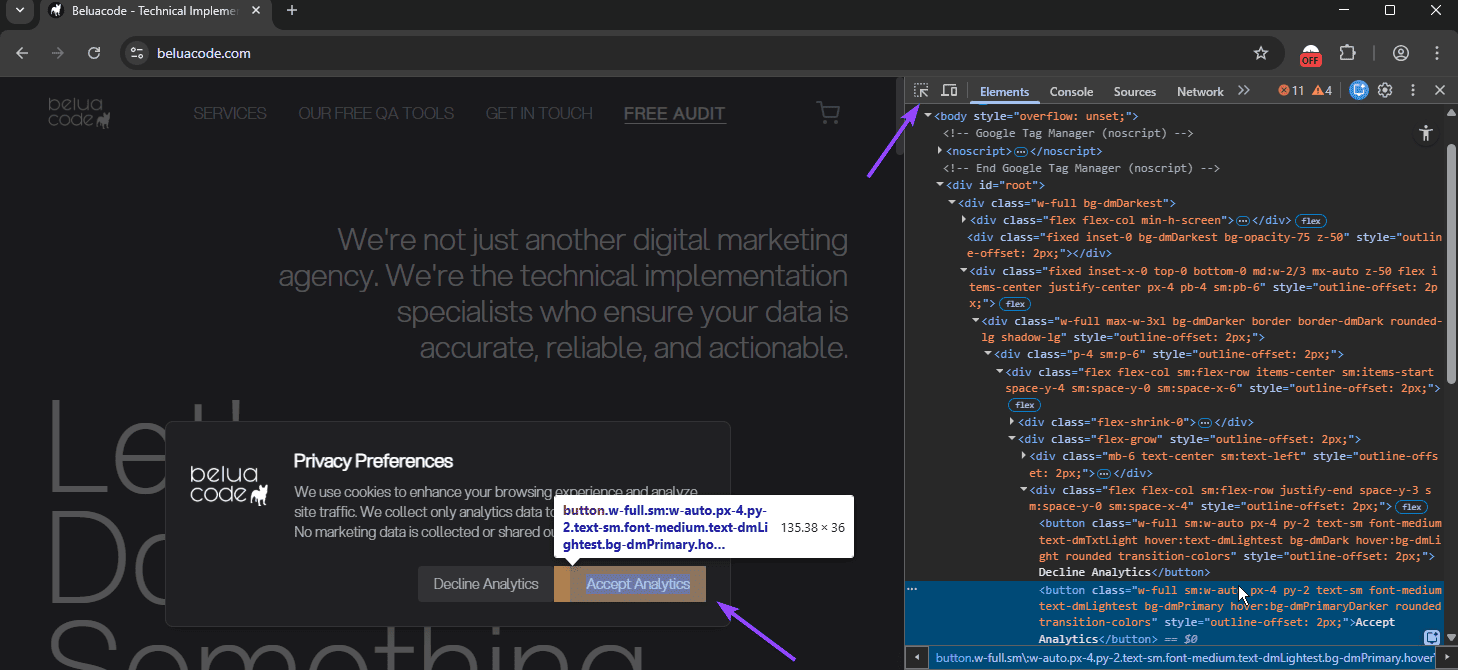
Right-click on any element and select Inspect or press F12 to open the browser’s developer tools.
Copy the Selector
Right-click on the element in the Elements panel and navigate to Copy → Copy selector (Chrome/Edge) or Copy → CSS Selector (Firefox).
The CSS selector will be copied to your clipboard.
Test the Selector for uniqueness
Open the browser console in the developer tools and run:
document.querySelectorAll('your-selector-here')Should return exactly one element (or the expected number). If it returns zero, the selector is wrong. If it returns many, it’s too broad
To access console, click on “Console” on the right of “Elements” in the Chrome Devtools navigation tab
Types of CSS Selectors
-
ID Selector -
#submit-button
Targets a single element with a specific ID. Most specific but can still break in case of HTML changes. -
Class Selector -
.btn-primary
Targets elements by class name. Reliable if classes are semantic and stable. -
Attribute Selector -
[data-action="submit"],[type="email"],[href*="checkout"]
Targets elements by attributes. Best for tracking when using data attributes created specifically for analytics. -
Descendant Selector -
.header .nav-item,form input[type="submit"]
Targets elements within a parent. Useful for context-specific elements. -
Direct Child Selector -
.form > button
Targets immediate children only. More specific than descendant selectors. -
Pseudo-class Selector -
button:first-of-type,li:nth-child(2)
Targets elements based on position or state. Fragile, breaks when page structure changes.Targets elements based on position or state. Fragile, breaks when page structure changes.
How to Choose the Right CSS Selector
Prioritize Stability
Use selectors that won’t break when developers update the page:
- Best: Data attributes
[data-tracking="signup"] - Good: Semantic class names
.checkout-button - Risky: Generated classes
.css-1x2y3z - Avoid: Position-based selectors
div:nth-child(3)
Keep It Simple
Shorter selectors are easier to maintain:
- Good:
[data-track="cta"] - Acceptable:
.hero .cta-button - To Improve:
body > div > section > div:nth-child(2) > button.btn.btn-primary
Consider Page Context
Different pages may need different strategies:
- Static pages: Class or ID selectors work fine
- Dynamic content: Use data attributes or stable parent containers
- SPAs: Avoid selectors dependent on URL or page structure
Common Pitfalls
Dynamically Generated Classes
Content Management Systems and CSS-in-JS framework might generate random class names that change between builds (website deployments):
.MuiButton-root-1x2y3z // Changes on every deploymentSolution: Use a stable parent selector or add data attributes.
Over-Specific Selectors
Long chains break easily when page structure changes:
header > nav > ul > li:nth-child(3) > aSuggestion: Find a stable class or attribute closer to the target element.
Matching Multiple Elements
A selector that works on one page might match multiple elements on others:
.button // Matches every button on the siteSuggestion: Add context or use more specific attributes. Test on multiple pages.
Relying on Text Content
Text changes frequently and varies by language and tracking might be impacted by the usage of Google Translator on page:
button:contains('Submit') // Not standard CSS, breaks with translationsSuggestion: Use structural selectors or data attributes instead.
Invisible Elements
Some selectors match hidden elements or duplicates in mobile/desktop views or may be there as honeypot for bots:
.modal-close // Might exist twice if modal is duplicated for mobileSuggestion: Test on different screen sizes and check element visibility in DevTools.
- Best: Data attributes

Co-founder of BeluaCode and AssertionHub
Analytics Developer specialised in tracking implementation,
implementations QA, tag management and highly customised solutions
when standard tools don't fit.
Runs
BeluaCode
as an implementation agency helping other experts when things get
too complex and
AssertionHub
to automate tracking validation on Analytics events.