
GA4 - How To Validate Add Payment Info
- add_payment_info fires when the user submits payment details, not when the payment page first loads.
- Required parameters are currency, value, and an items array. The payment_type parameter is optional but valuable for method breakdowns.
- The value must match the transaction total including shipping, consistent with the downstream purchase event.
- Validate by filtering network requests for en=add_payment_info or using AH Debugger to see the decoded payload.
Parameters to validate add_payment_info
Required Parameters
currency (string) - Required when value is set
- Must be 3-letter ISO 4217 format: USD, EUR, GBP
- Without currency, revenue metrics won’t calculate
- Common mistake: “usd” instead of “USD”
value (number) - Required for revenue tracking
- Must be number, not string
- Sum of (price × quantity) for all items
- Do NOT include tax or shipping
- Common mistake: “30.03” as string instead of 30.03 number
items - Required
- Must be array, even for single item
- Cannot be empty
- Each item needs item_id OR item_name
- Common mistake: empty array or object instead of array
item_id OR item_name (string) - At least one required per item
- Every item must have one of these
- item_id preferred for tracking
- Common mistake: providing neither
Optional Parameters
payment_type (string)
- Examples: “Credit Card”, “PayPal”, “Apple Pay”, “Debit Card”
Validate add_payment_info using AH Debugger
Install and Enable AH Debugger
-
Install AH Debugger extension from Chrome Web Store ,
-
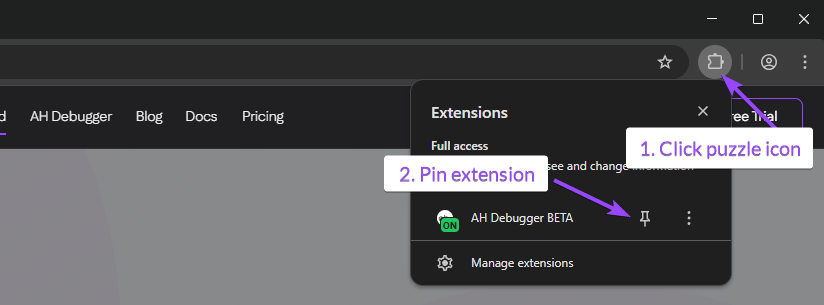
Click on the puzzle Icon on the top right of your browser,
-
Optionally pin the AH Debugger extension for easy access.
-
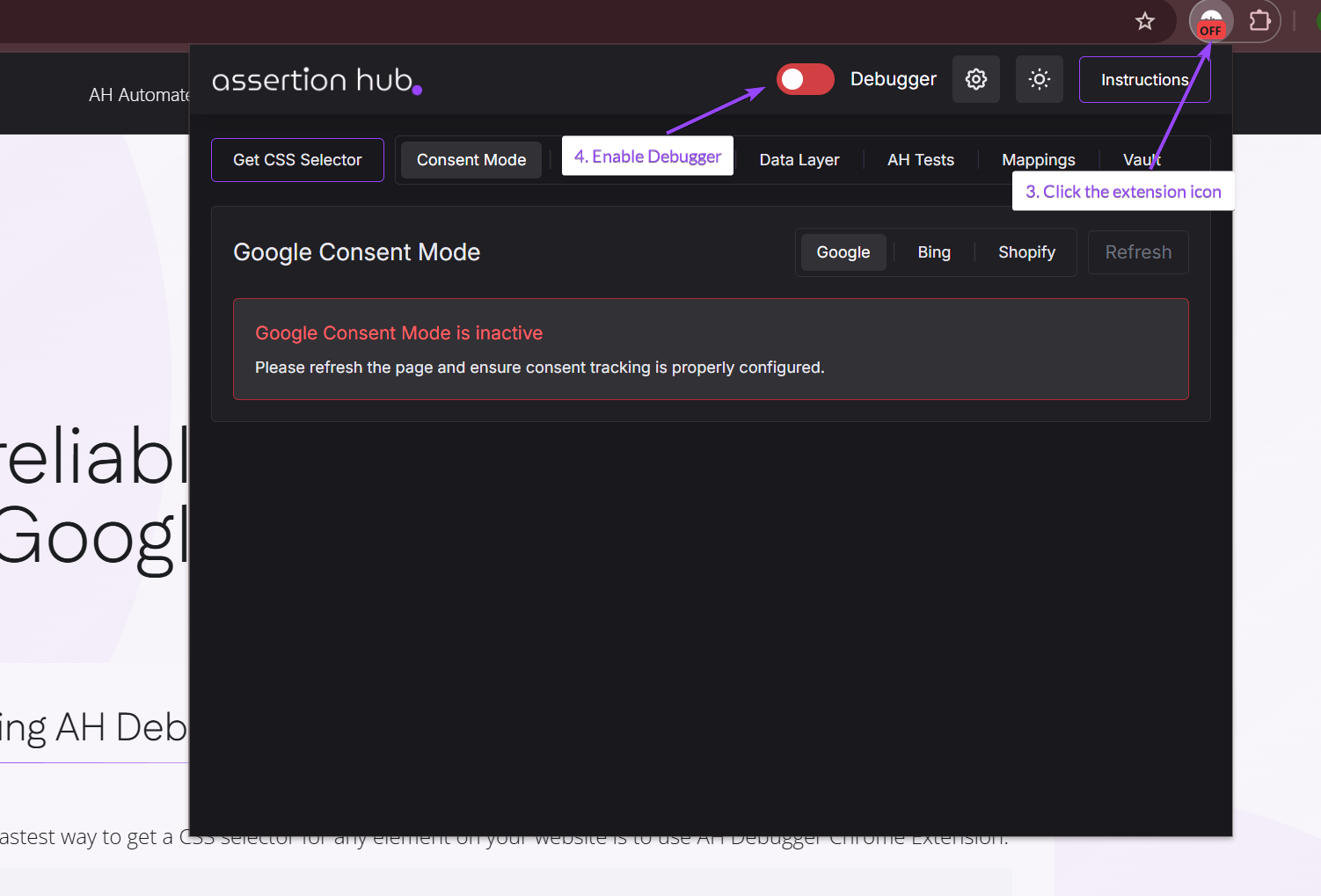
Click on the extension icon
-
Enable the debugger clicking on red toggle
View Event in Console Tab
-
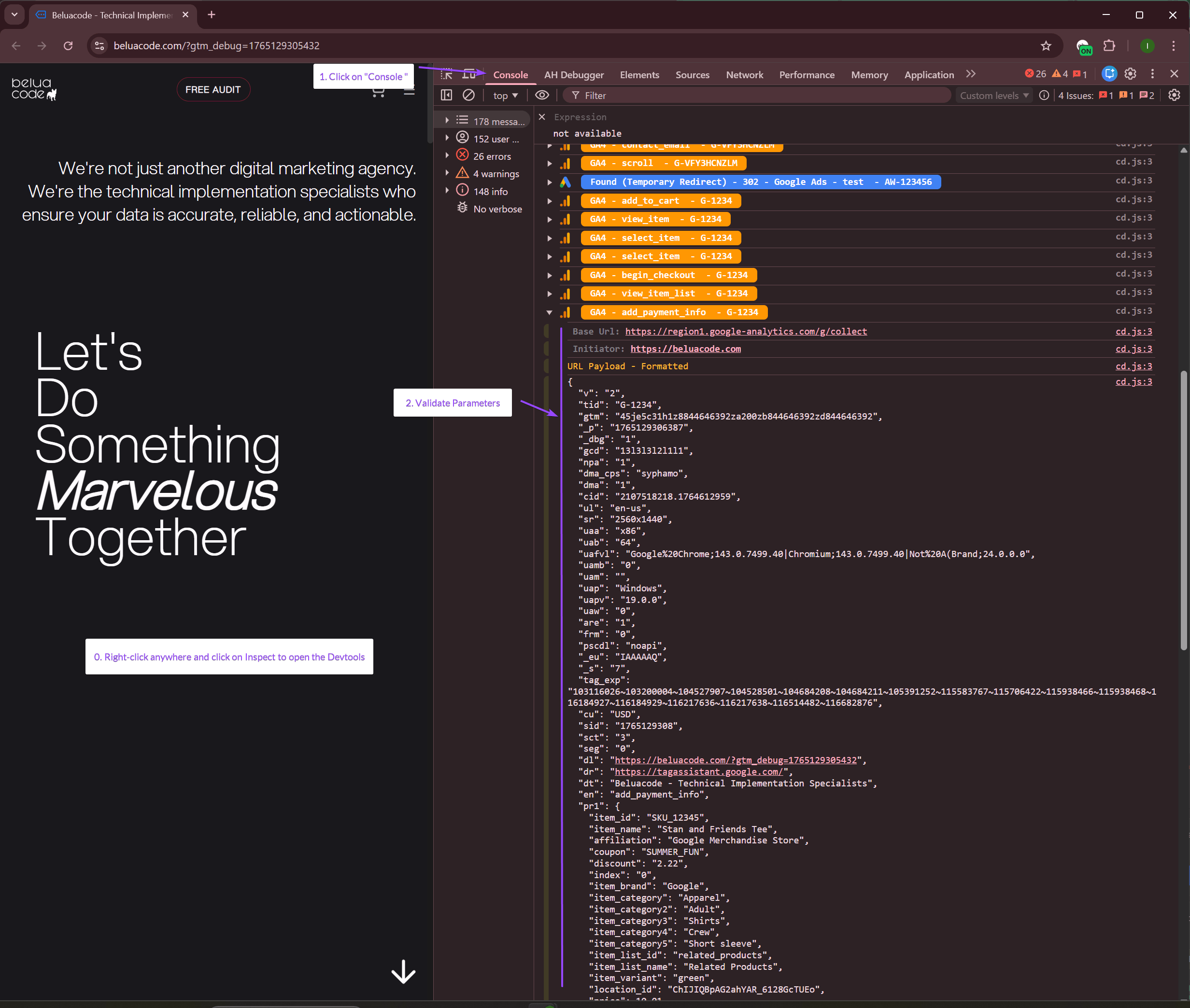
Open Chrome DevTools by pressing
F12or right-clicking anywhere and selecting Inspect. -
Click the Console tab in DevTools and trigger the event on your website.
-
Check for the event name you want to validate, and click to expand it and check the hit parameters
View Event in AH Debugger Panel
-
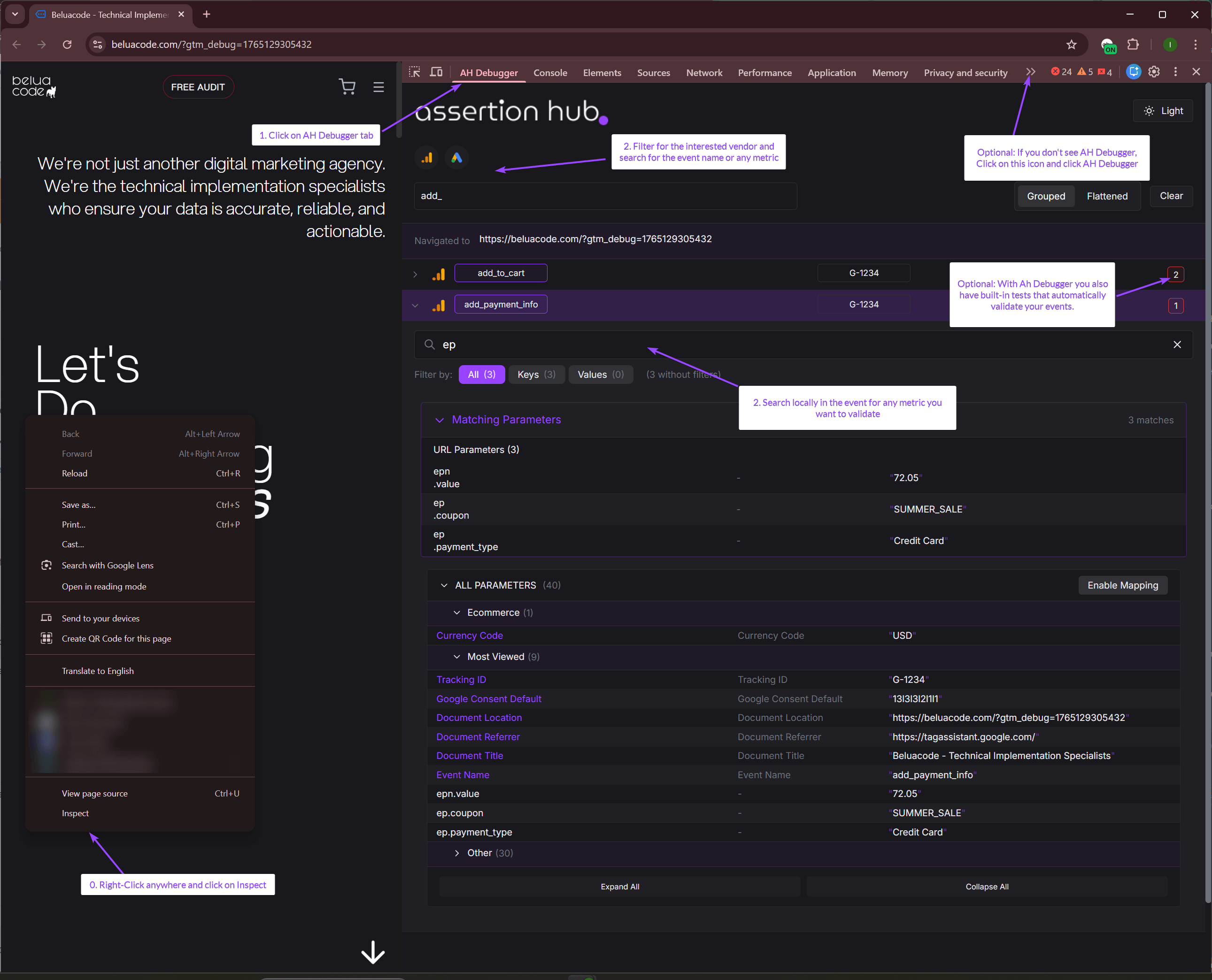
Open Chrome DevTools by pressing
F12or right-clicking anywhere and selecting Inspect. -
Click on AH Debugger panel. If not present, click on the double-arrow on the right and from the dropdown click on AH Debugger.
-
Use Global and Local search to find the or specific parameters you want to validate.
-
Start validating the parameters to ensure they match with what GA4 expects to receive for that event.
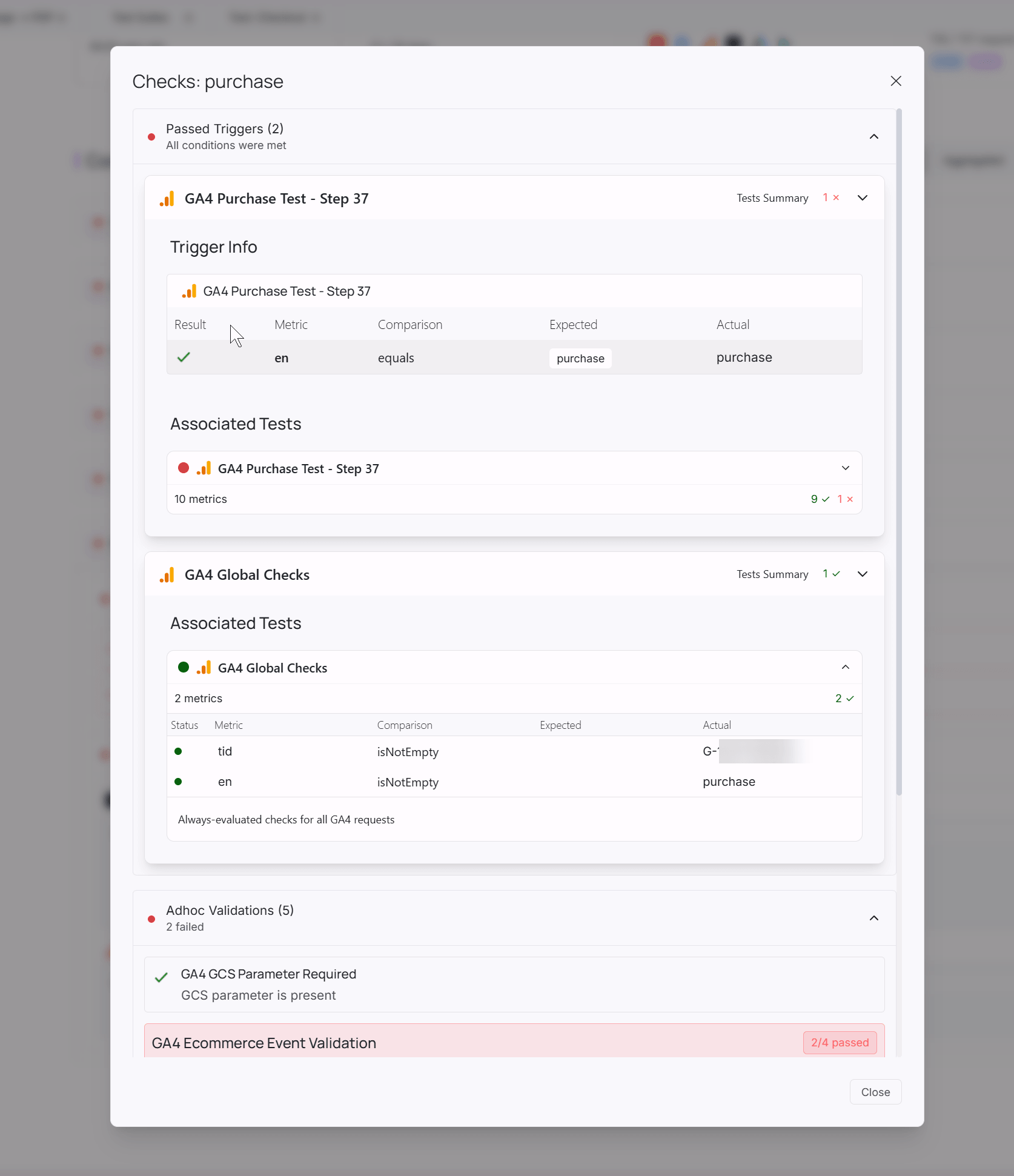
- Built-in Tests: If any is present, you will see on the right side the results. Click on the number and a modal with the results will show up.
Validate add_payment_info using Chrome DevTools
Open Chrome DevTools Network
-
Navigate to your checkout payment page, then press F12 (Windows/Linux) or Cmd+Option+I (Mac). Alternatively, right-click anywhere on the page and select Inspect.
-
Click the Network tab in the DevTools panel.
Setup Network Tab
- In the filter box, type:
collectto show only GA4 requests or the event name. - Select the Network Request to debug
- Inspect and Validate parameters existence and values
Click the Payload tab.
Find “Query String Parameters” section.
Look for these key parameters:
en=add_payment_info           ← Event name
v=2                          ← Protocol version
tid=G-XXXXXXXXXX             ← Your Measurement ID
epn.value=77.97              ← Value (number type)
epc.currency=USD             ← Currency
ep.payment_type=Credit%20Card ← Payment type
pr1id=TSHIRT001              ← First item ID
pr1nm=Blue%20T-Shirt         ← First item name
pr1pr=29.99                  ← First item price
pr1qt=2                      ← First item quantity
pr2id=SHORTS001              ← Second item ID
pr2pr=17.99                  ← Second item price
pr2qt=1                      ← Second item quantity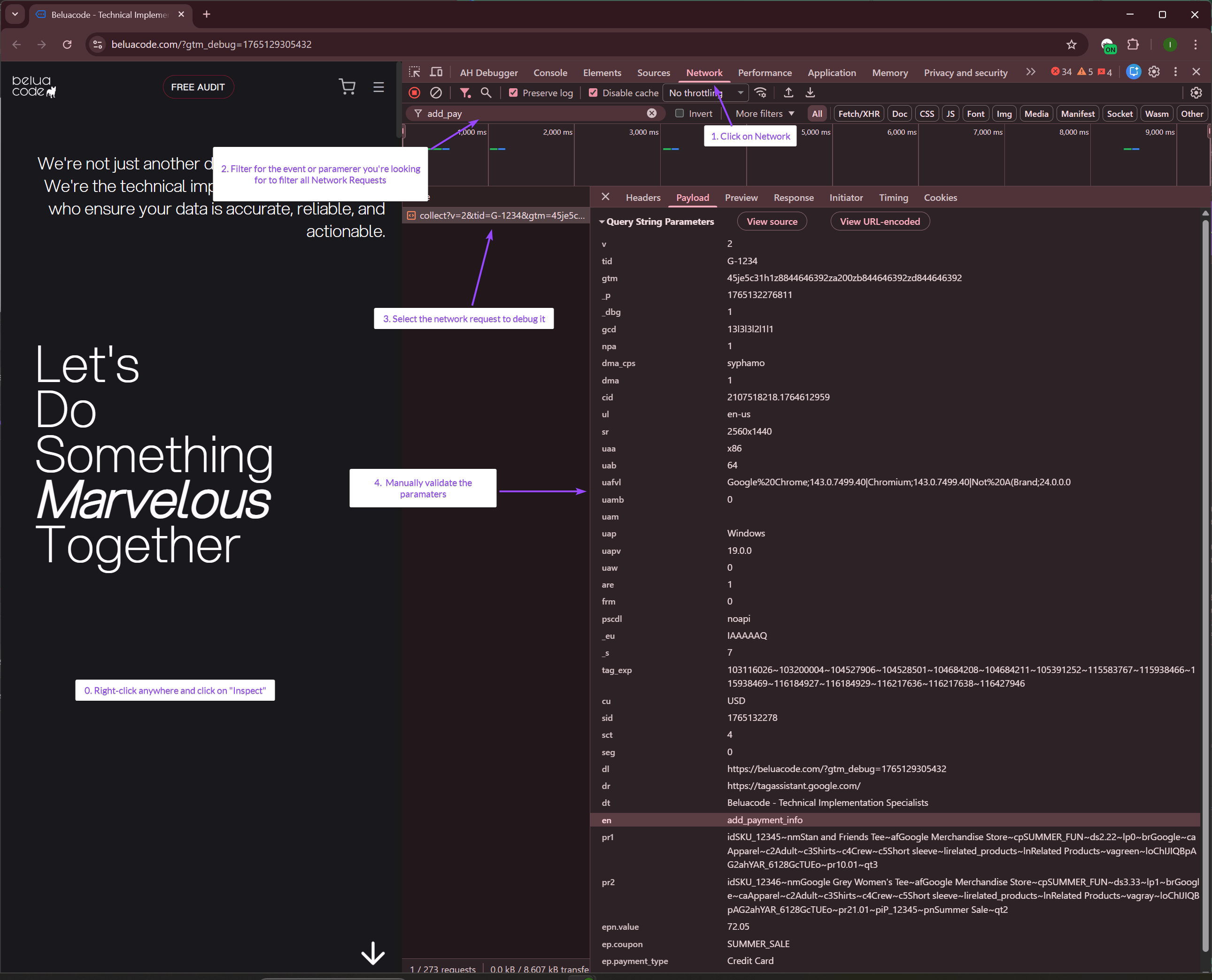
Validate Request Status
Look at the Status column:
- 2xx (shown in green) = Success
- 4xx (red) = Bad request
- 5xx (red) = Bad request
- Failed (red) = Network error, ad blocker, Google Ads account suspended. Usually with error code “-1”
Automated Validation for GA4 add_payment_info
Manual validation can be time-consuming and error-prone. Consider using AssertionHub to set up automated tests that continuously monitor your GA4 implementation, including the add_payment_info event.
Learn more about AssertionHub for continuous GA4 monitoring.

Co-founder of BeluaCode and AssertionHub
Analytics Developer specialised in tracking implementation,
implementations QA, tag management and highly customised solutions
when standard tools don't fit.
Runs
BeluaCode
as an implementation agency helping other experts when things get
too complex and
AssertionHub
to automate tracking validation on Analytics events.