
How to test your Analytics events with AH Debugger?
- AH Debugger lets you validate analytics events without switching between browser tabs or the GTM Preview panel.
- Browse the site with the overlay active and events appear in real time as they fire, decoded and labeled by vendor.
- Custom test rules let you assert expected parameter values on specific events without writing any code.
- The DevTools panel stores a full log of all requests fired in the session, so you can review events you missed live.
Prerequisites
- Install AH Debugger extension from Chrome Web Store
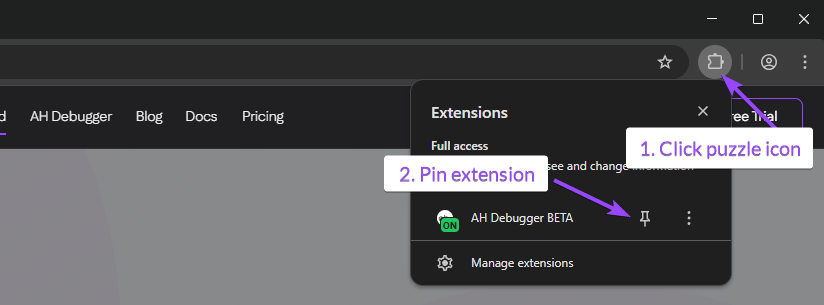
- We suggest keeping it pinned to your browser top bar. To do so, click on the puzzle icon and close to AH Debugger click on the pin icon.
Your first validation
The Validator functionality will allow you to collect analytics requests while you browse your website and send them to our validator at qa.assertionhub.com. There you can ensure your analytics events have no errors.
Install and Enable AH Debugger
- Click on the puzzle icon on the top right of your browser
- Optionally pin the AH Debugger extension for easy access
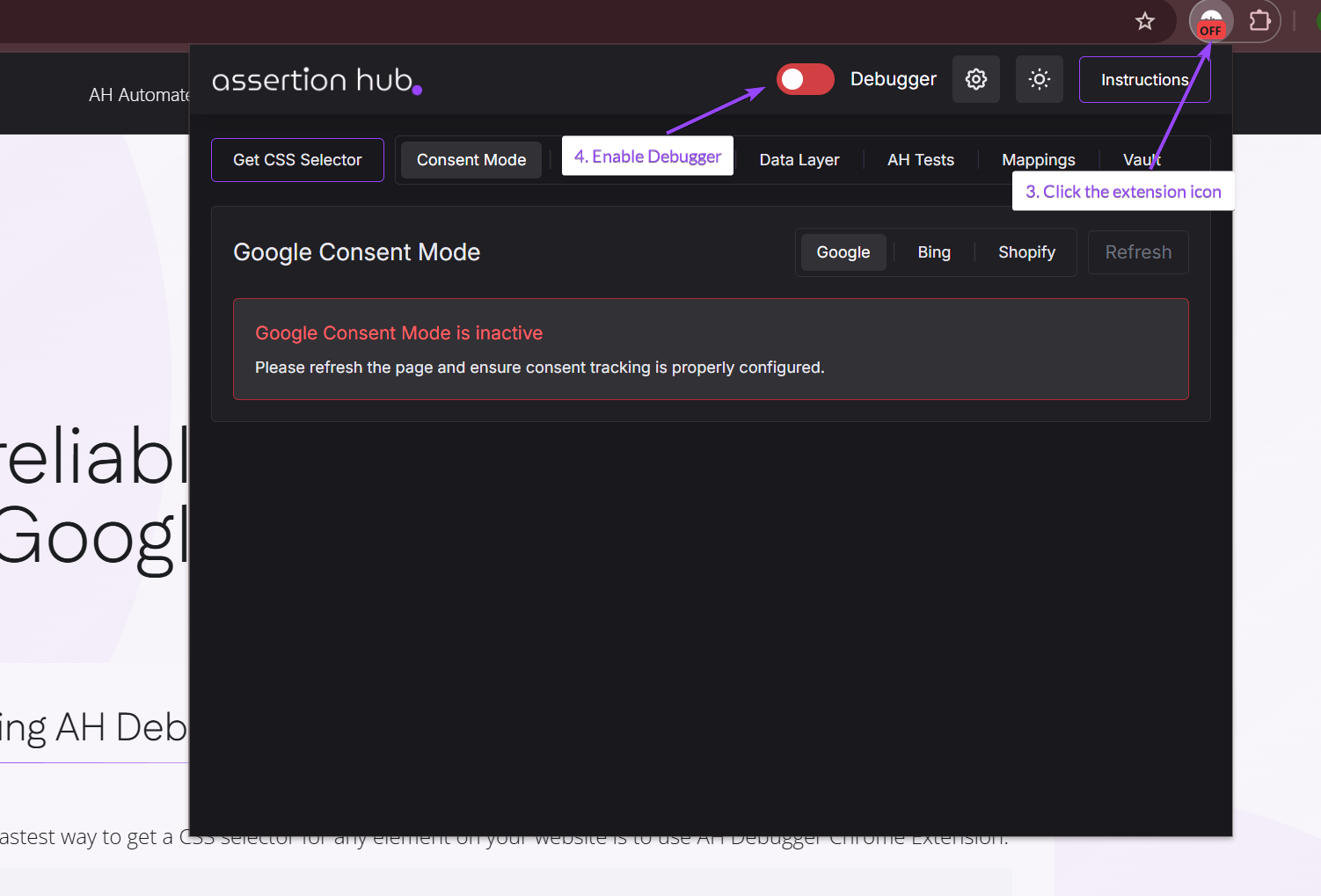
- Click on the extension icon
- Enable the debugger by clicking on the red toggle
Browse your website
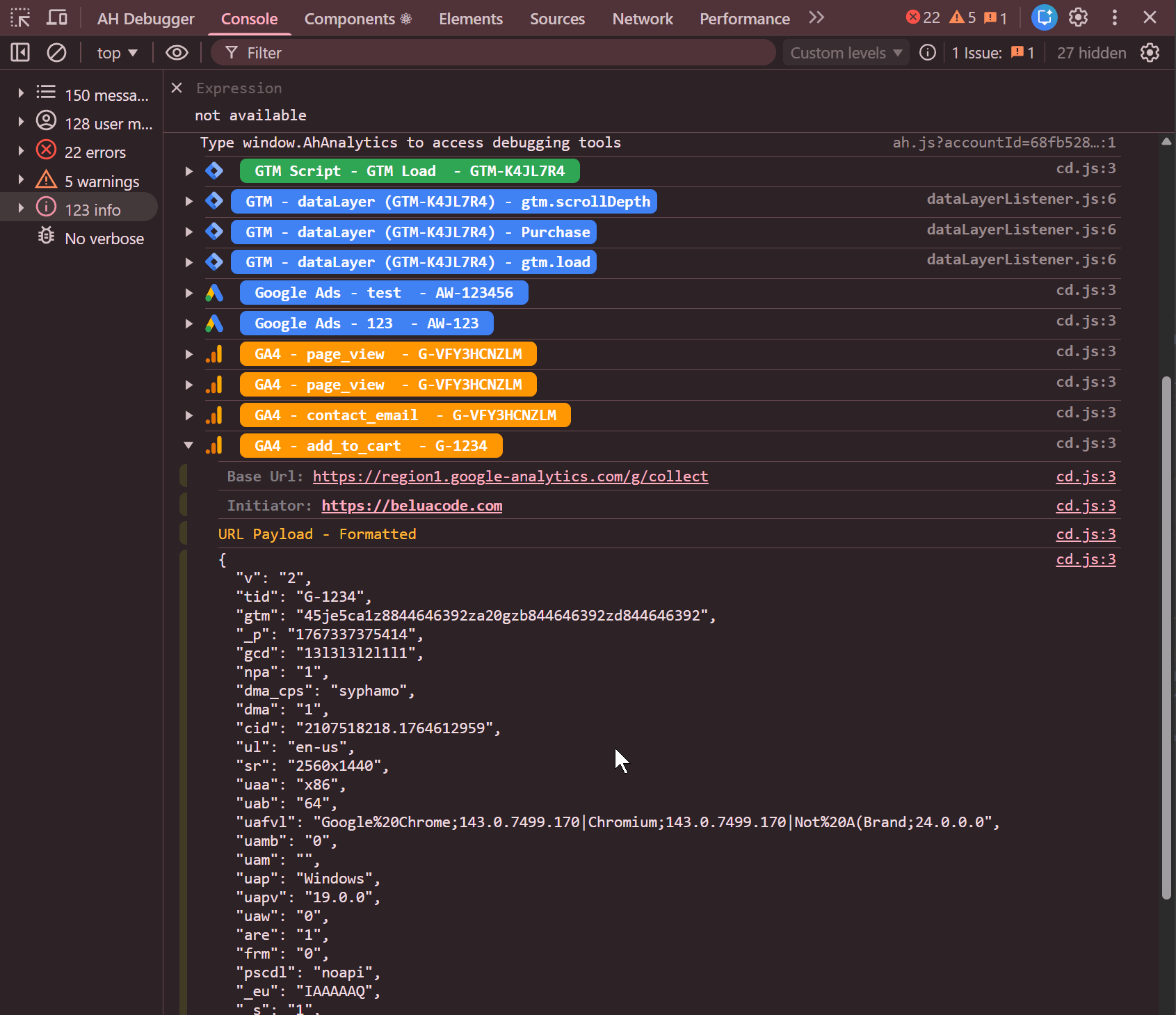
Navigate through the pages and interactions you want to test. The extension will collect all analytics and marketing pixel requests in the background: GA4, Facebook Pixel, Google Ads, GTM Data Layer, and more.
Validate your session
Once you’ve completed your browsing session, click Validate Session in the extension. We perform built-in checks on your data to validate if in your session you have possible duplicates or wrongly formatted event parameters.
We don’t store or read your data. When you validate a session we create an isolated environment where the tests run and then it is destroyed after. The results of your validations are saved in your browser for you to review. If you purge cache and cookies these will be cancelled forever.
Your first Custom Test
You can also create custom checks to be performed alongside the built-in validation to have the maximum test coverage for your analytics events.
Find the event you want to test
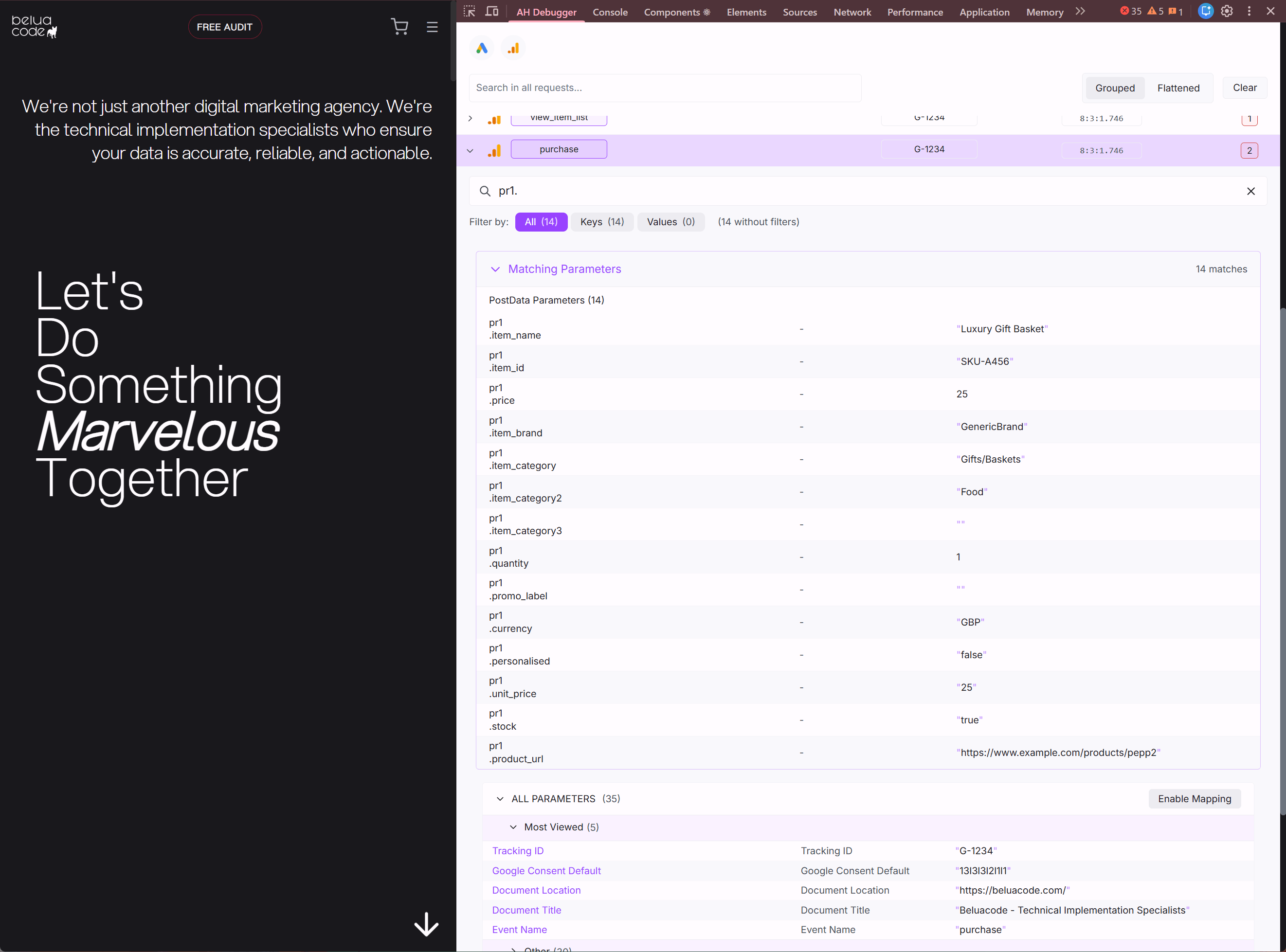
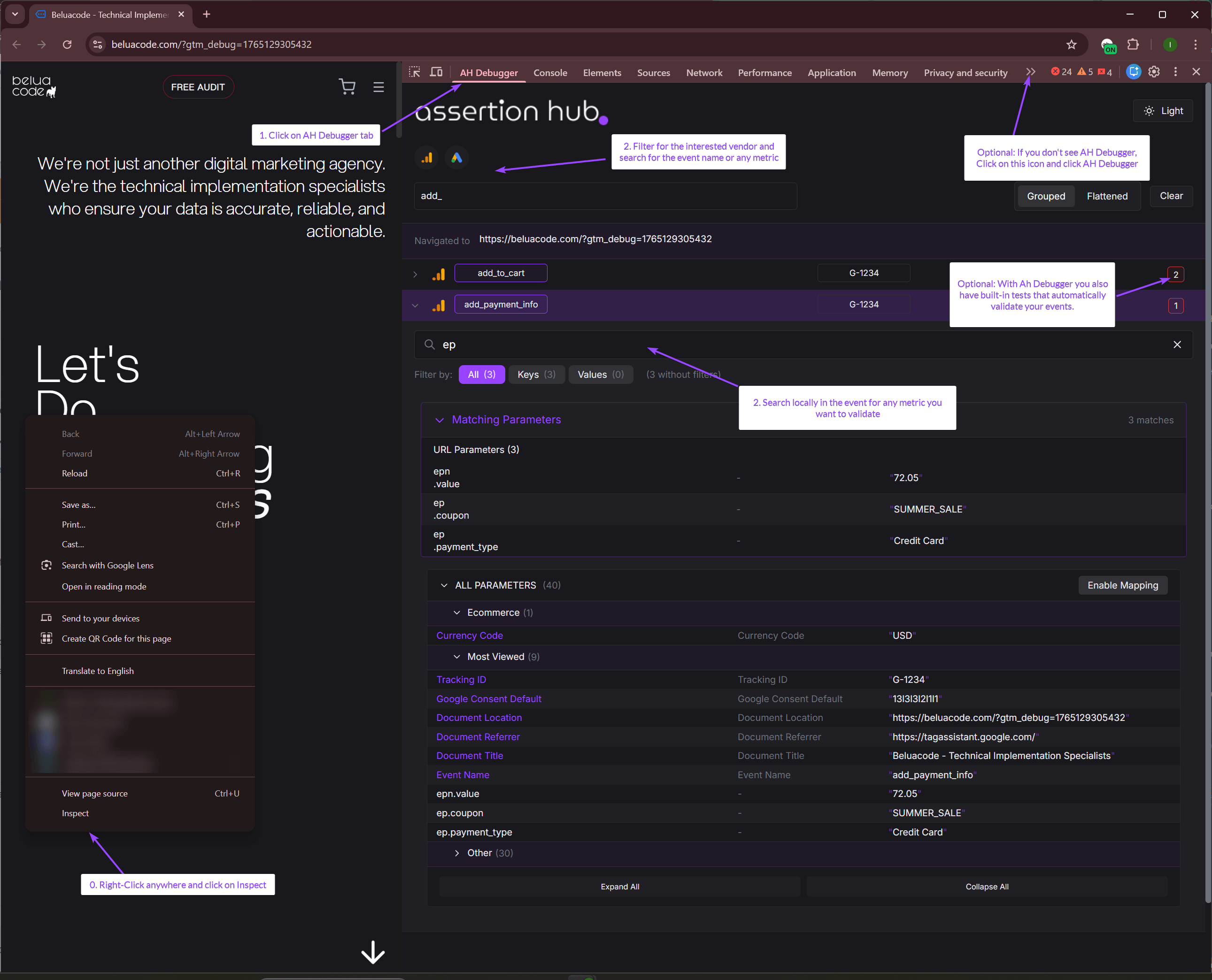
Open Chrome DevTools by pressing F12 or right-clicking anywhere and selecting Inspect. Click on AH Debugger panel. If not present, click on the double-arrow on the right and from the dropdown click on AH Debugger.
Use the Global and Local search to find specific parameters you want to validate. The global search functionality allows you to instantly filter all your requests for the parameter you’re looking for. This is a powerful functionality no other debugging extension on the market has.
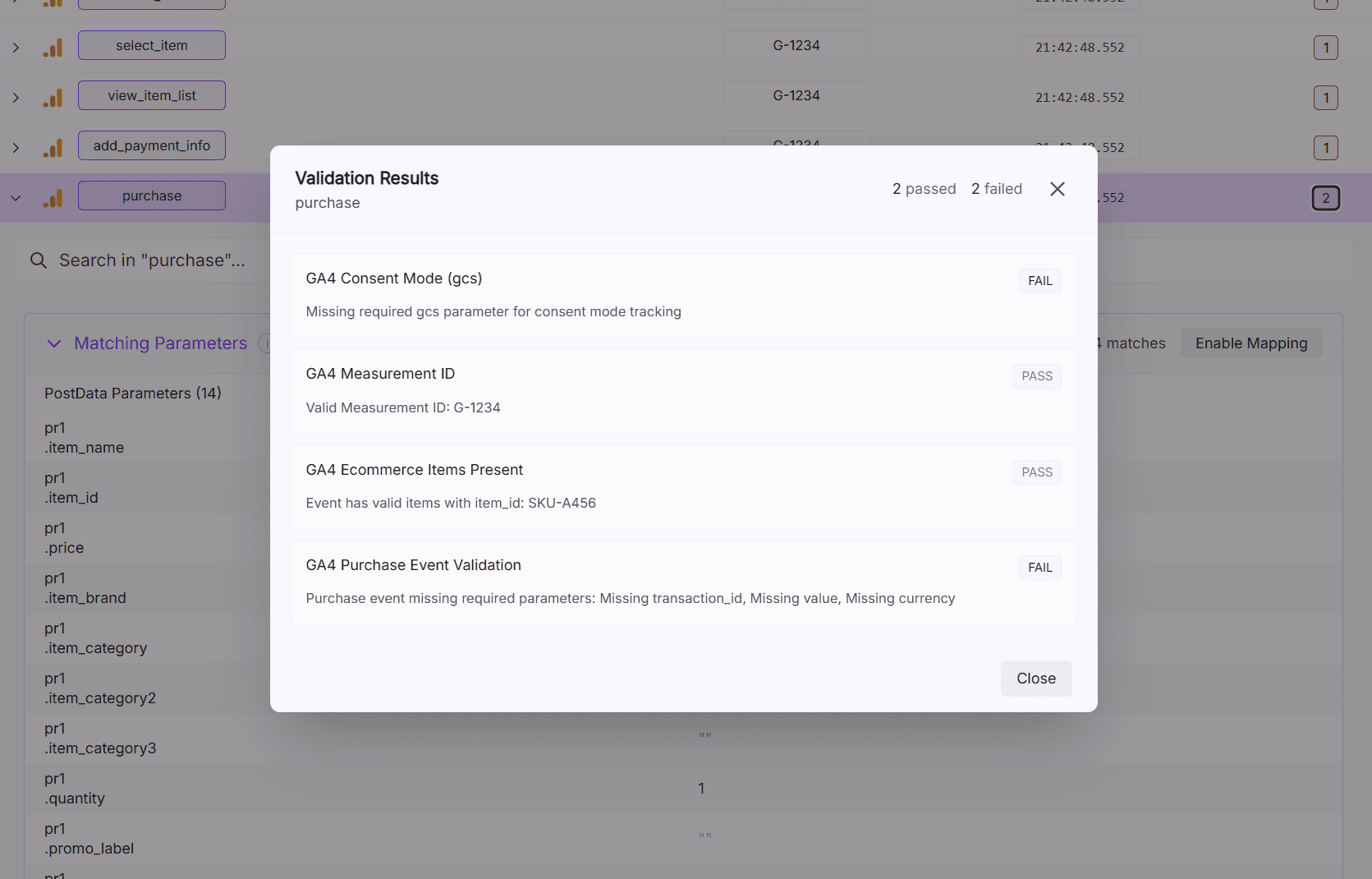
Check the built-in test results
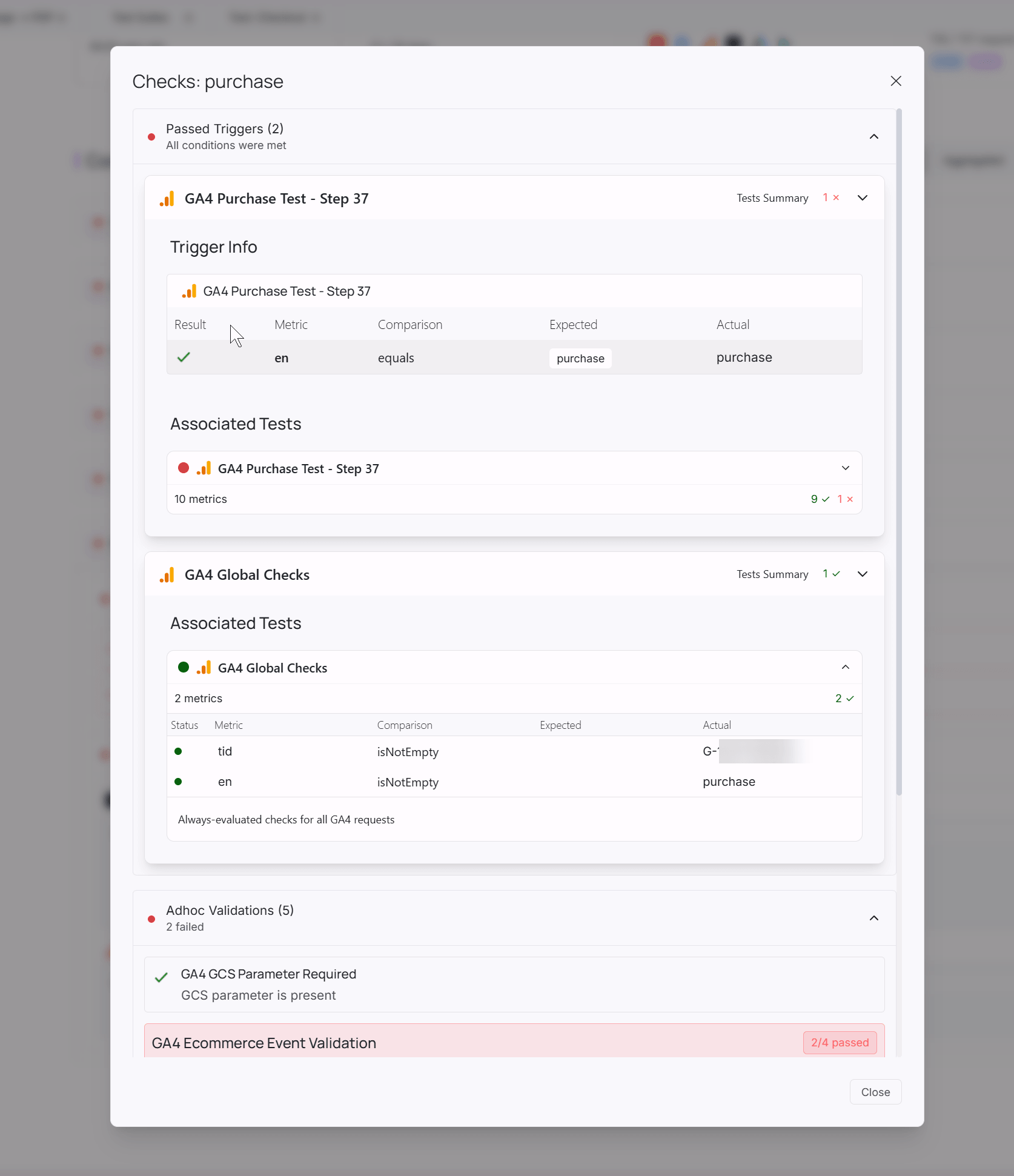
If any built-in tests are present, you will see the results on the right side of the AH Debugger panel. Click on the number and a modal with the results will show up.
Add a custom check
Click Add Custom Test on any event in the validator results to define your own assertion. Custom tests run alongside the built-in checks every time you validate a session with the same extension, giving you full coverage over your analytics implementation.
Your first Automated QA workflow on Google Chrome
Once you create your tests and trigger performing a regression test on your website, it will be a matter of seconds. AH Debugger integrates with AssertionHub to run your entire QA workflow automatically, with no manual browsing needed after the initial setup.
Record your user journeys in AssertionHub
AssertionHub includes a built-in browser recorder, no extensions or external tools required. Enter your website URL, hit Start Recording, and navigate as a real user: add products to cart, go through checkout, complete a purchase. Every interaction is automatically added to the step list.
You can also describe steps in plain text and let AI handle the rest: type “add the first product to cart” and the AI picks the right element at execution time. No DOM knowledge needed.
Assign your tests to journey steps
While recording, a live panel shows every network request and Data Layer push detected per step. Click Test on any event to create an assertion. Every captured metric is pre-filled. Pick what you want to assert and save. No blank-canvas configuration, no guessing at field names.
Not sure which metrics matter? Describe what you want to validate in plain text and the AI selects the right metrics. You review and confirm.
Tests are assigned directly to the step where they should run, so validations only fire at the right point in the journey. You can also define Global Checks (e.g., “GA4 purchase must always have transaction_id”) and reuse them across all recordings without recreating them each time.
Schedule and review
Once your journeys and tests are set up, AssertionHub replays them on a daily schedule and runs all your checks automatically. If tracking breaks, you get an instant Slack or email alert, no manual checking required.
Open the dashboard to review results. Each run shows a pass/fail status per test, grouped by step in your user journey, so you can drill down to the exact parameter that failed.
Try AssertionHub free for 7 days to set up your first automated QA workflow in minutes.

Co-founder of BeluaCode and AssertionHub
Analytics Developer specialised in tracking implementation,
implementations QA, tag management and highly customised solutions
when standard tools don't fit.
Runs
BeluaCode
as an implementation agency helping other experts when things get
too complex and
AssertionHub
to automate tracking validation on Analytics events.