
Your first automated QA with AssertionHub
This guide walks you through the complete workflow, from your first User Journey recording all the way to replaying it and reviewing the results.
What is a User Journey?
A User Journey is a set of instructions for AssertionHub to simulate user behavior on key conversion funnels and validate all the events firing in the process.
It is a simulation of an actual journey done by a user on your website. Adding a product to cart, completing a purchase, you get the idea.
Events detected during these steps are validated according to your settings. We will also see how to create a test and attach it to a step later in this guide.
Step 0 - Create an account
- Go to app.assertionhub.com
- Create an account if not logged in
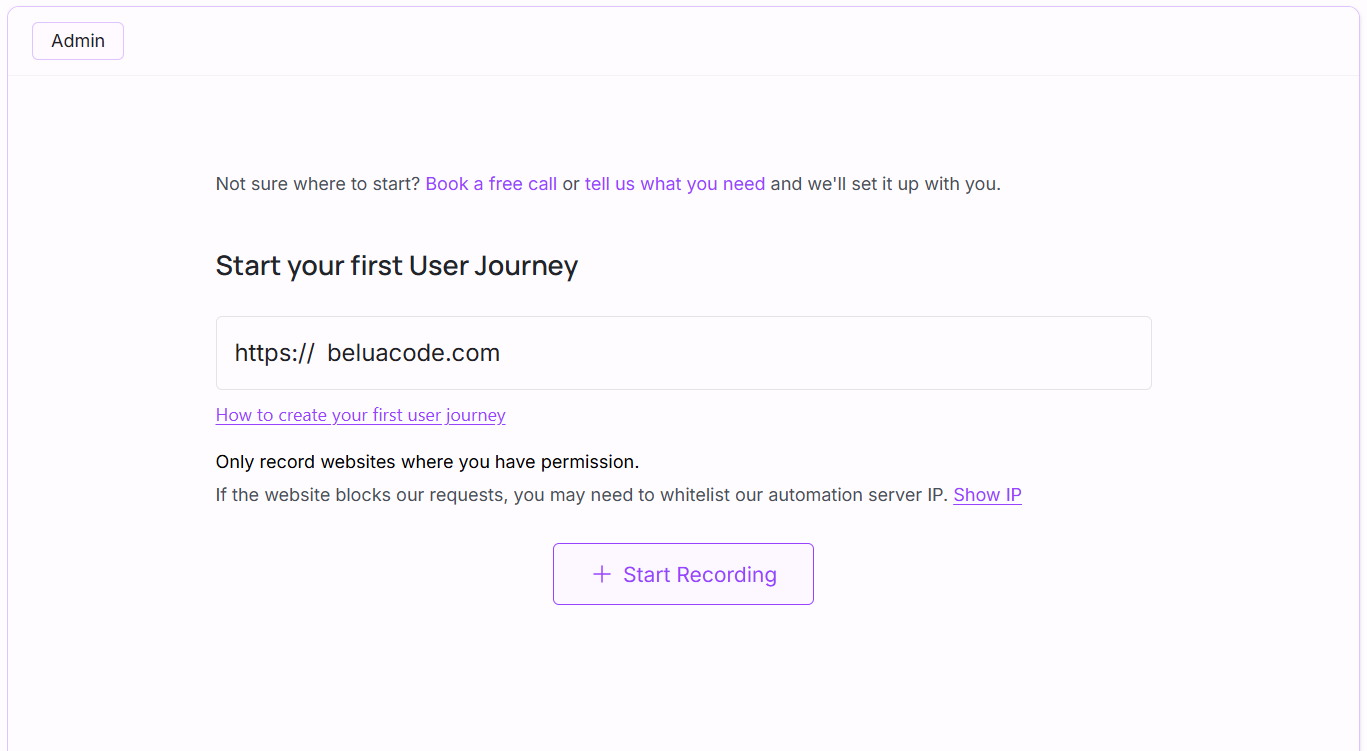
Step 1 - Start a new Recording
- Go to app.assertionhub.com
- Fill in the Recording Info and start a new recording
Only add an URLs you have permission to QA.
Step 2 - Perform Your Actions
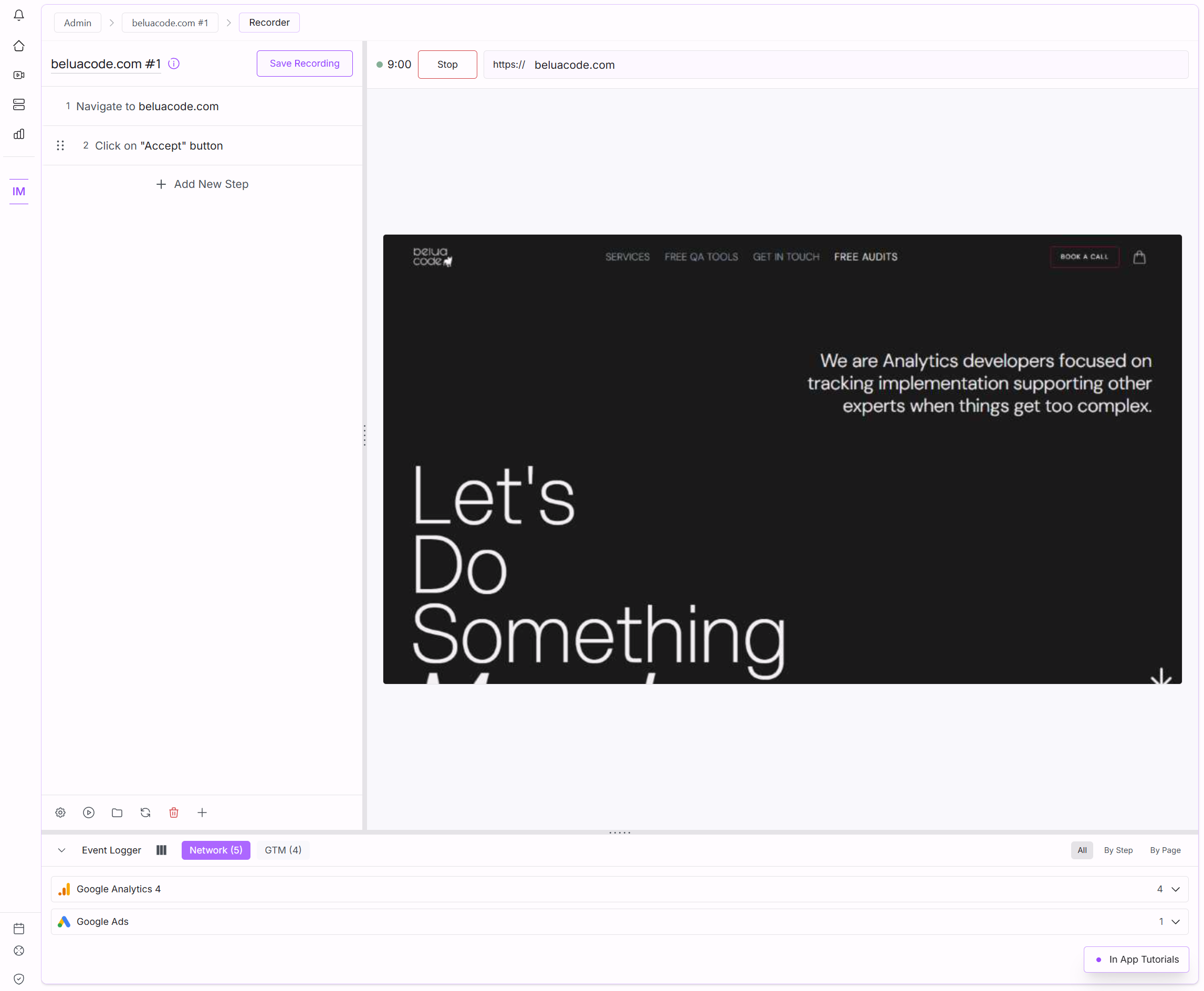
Use the live browser in Assertionhub to navigate your website, every interaction will generate a new “Recording Step” on the left side.
Step 3 - Save your Recording and Run an Automated QA
- Stop your session
- Save your Recording
- Run your recording by clicking on “Save and Run” after have stopped the recording. (or anywhere you see a “Run” button)
No need to create any test at this moment, on the first run, a set of “Validations” for all your events will be automatically generated by Assertionhub. If the automatically created ones are not detailed enough, scroll down to “Create Analytics and Data Layer Tests” to create Custom Validations
Step 4 - Look at the User Journey QA Result
- After starting to run a Recording, come back to the Home Section (app.assertionhub.com) and wait for the User Journey QA Result to show up at the top. Once it shows, click it.
- Now you are in the User Journey QA Result page.
- Here you will see at the top a list of issues. Start from here, click 1 by one the issues and you will be brough to the step and specific event having that issue.
- To look at all details of the validations for a specific event, click on the event row.
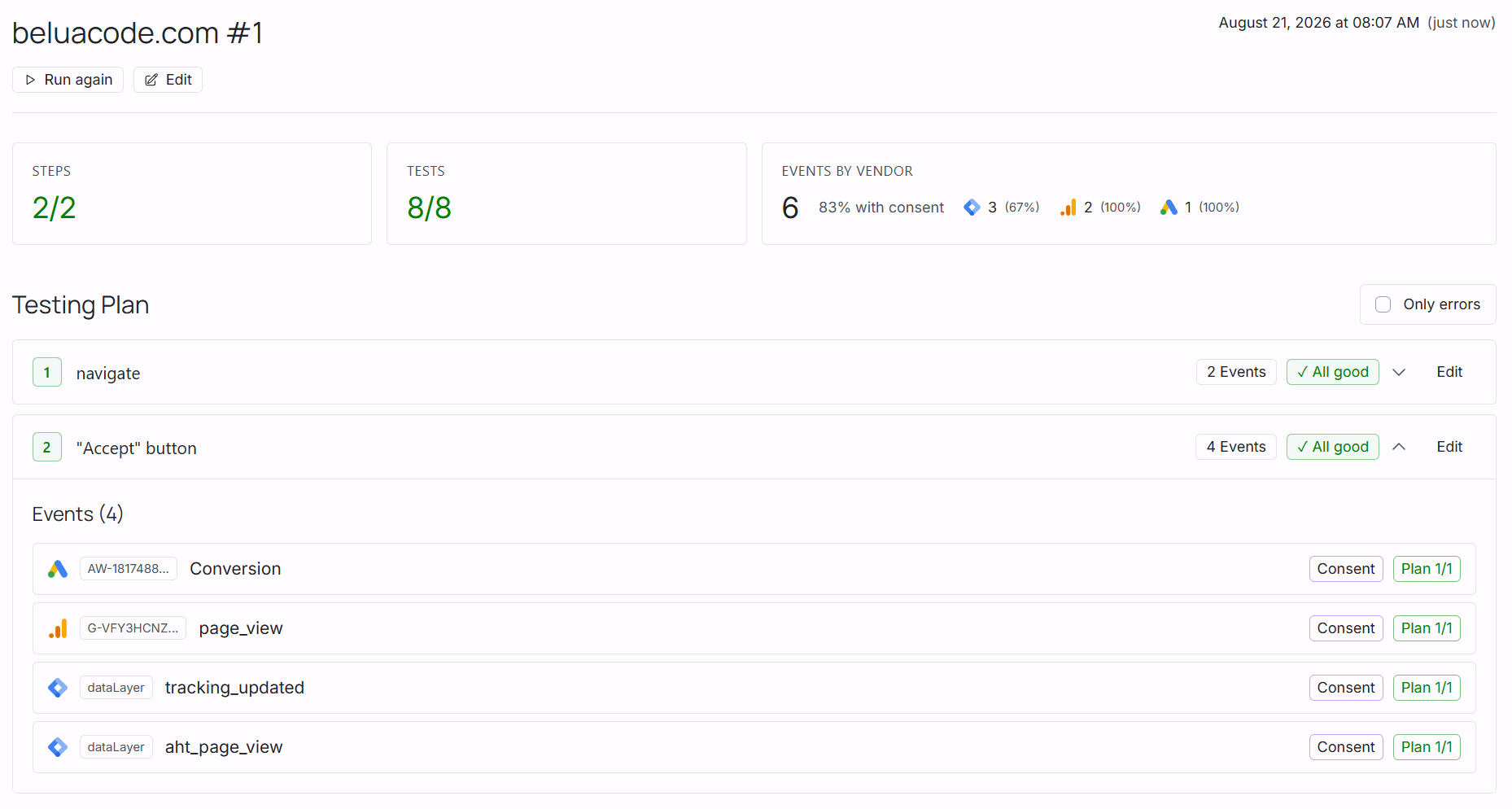
There are different type of validations:
- Built-in Validations
- Testing Plan Validations. Automatically created on the first run for you based on the detected events.
- Custom Validations
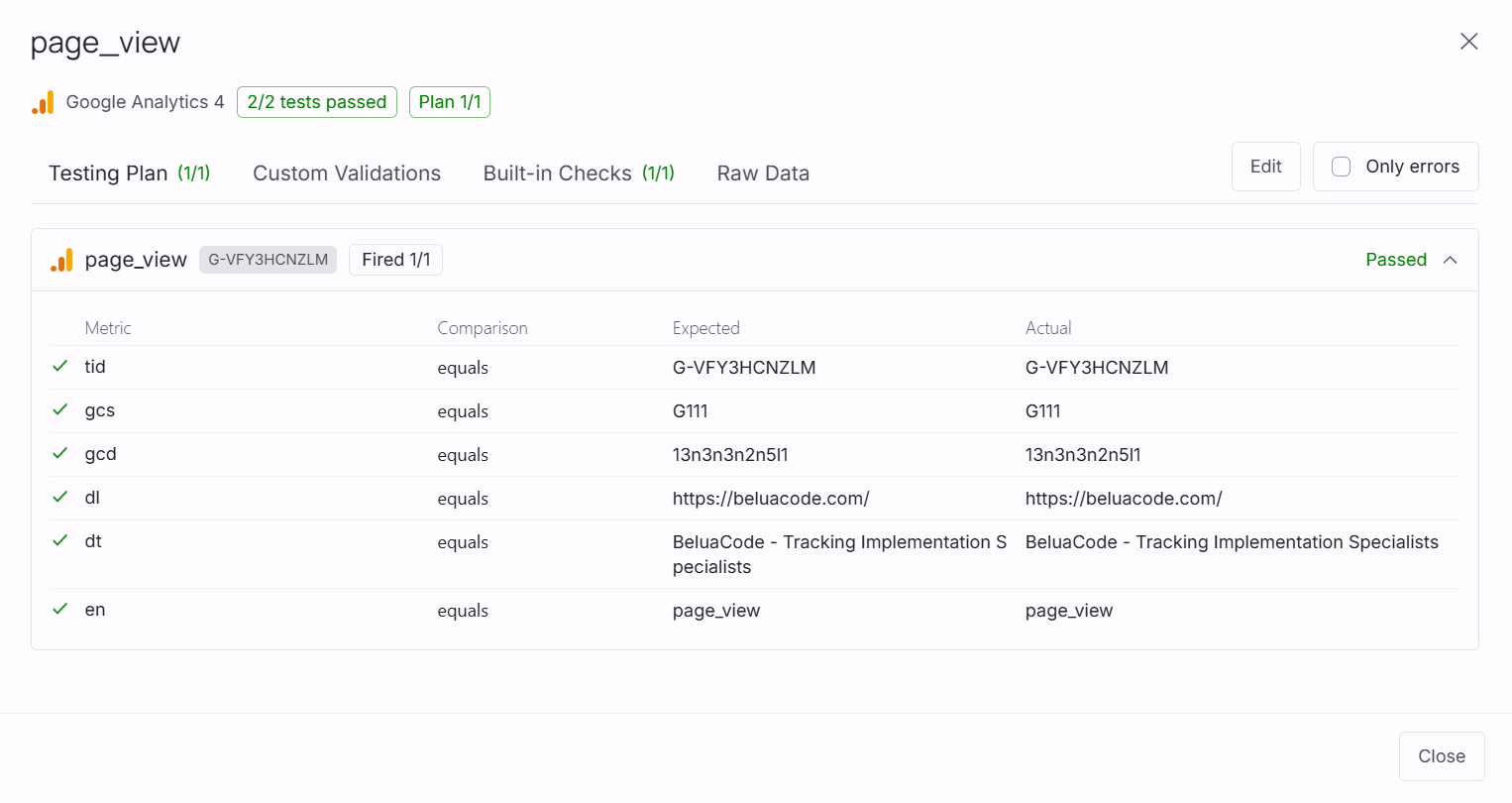
The validations are then able to check 2 main things:
- If an event fired and how many times. You can decide how many time you want an event to fire. E.g. on some pages there are multiple view_item_lists but this is not a duplicate.
- If any specific parameter is present or has a specific expected value (or regex)
What’s next?
Now that you have your first User Journey Recoding up and running, you can schedule it to run every day at a specific time ( or specific days of the week only).
You will receive an email or slack notification anytime the Automated QA process finds a bug.
Below some optional steps
Optional Steps
Create Analytics and Data Layer Tests
Once you’re done recording, save it and move on to creating tests.
AssertionHub includes numerous built-in validations for GA4, Google Ads, and other vendors that are frequently updated. For anything more specific, you can create custom tests.
Quick guide: create a test from a detected event
- Check the Request Logger on the right. If events are already listed from your recording, skip to step 3.
- If the logger is empty, click Continue Rec and wait for the replay to finish so events are captured.
- Find an event you want to test and click the + icon next to it.
- Name your test and choose a Logical Operator (AND / OR) for both the Test and the Trigger.
- Select at least one metric as a Trigger (e.g. event name) and one as a Test (e.g. a custom dimension).
- Click Create Test.
Once created, come back here and follow Step 5 to attach the test to a step. For more options (creating from scratch or from the Results page), see the full Tests and Triggers guide.
Replay Your Recording
Run your saved recording to verify that all steps execute correctly.
- Click the ⋯ menu in the Control Panel header.
- Select Replay Recording.
- A confirmation modal shows how many steps will run. Click Start Replay.
What happens next:
- The browser session restarts at the first navigation step.
- Steps execute one by one, each waiting the configured time before the next.
- As each step runs, its status badge updates in real time:
- Yellow “Running”: currently executing
- Green ✓: completed successfully
- Red ✗: failed
- When all steps complete, a summary modal appears showing the overall result.
Stop a replay early
Click the red Stop Replay button at the top of the Control Panel at any time.
Resume from a specific step
If you want to re-run only part of the journey, click the three-dot menu on any step and select Continue from here. The replay starts from that step onward.
Review and Edit Your Steps
Attach an Analytics Test to a Step
If you want to verify that an analytics event fires correctly when a step runs, you can attach a test to it.
- Open the step by clicking on it.
- In the Step Edit Modal, go to the Validations section and click the Analytics Tests tab.
- In the test management area, find the test you want to attach and click Add.
- Set the expected count: how many times you expect this event to fire, and choose an assertion type (equal to, greater than, etc.).
- The step card now shows a blue badge with the number of attached tests (e.g. “2 tests”).
Rename a step description
Click the description text on any step to edit it inline. Press Enter to save.
Change a step’s wait time
Each step has a time chip on the right (e.g. ”10s”). Click it and type a new value in seconds. This controls how long the Recorder pauses after that step before continuing to the next one during replay. Increase it if the page needs more time to load.
Open the full step editor
Click anywhere on a step card to open the Step Edit Modal. From here you can:
- Change the Action type (Navigate, Click, Type, Scroll, Hover, Keypress)
- Adjust the Wait Time in milliseconds for fine-grained control
- Add or edit Selectors, the instructions the Recorder uses to find the element on the page
- Toggle Stop on Failure. When on, the replay halts if this step fails; when off, it marks the step as skipped and continues
Reorder steps
Grab the drag handle (⋮⋮) on the left of any step and drag it up or down to change its position.
Add a step manually
Click the dashed “Add New Step” button at the bottom of the step list to insert a blank step and configure it in the editor.
Delete a step
Click the three-dot menu (⋯) on the step card and select Delete.
Add a Selector Manually or by Picking (Optional)
If a step’s selector needs to be improved, or if you are adding a step manually, you can use the element picker to capture the exact element from the live page.
- Click the three-dot menu on the step just before the one you want to adjust and select Continue from here.
- Wait for the replay to finish
- Open the step to modify by clicking on it.
- In the Selectors section, make sure Manual mode is selected.
- Click the 🎯 Pick button.
- Click the element. The Recorder captures its selector and adds it to the list automatically.
- Close the modal to return to the step list.
Handle a Failed Step (AI Suggestions)
If a step fails during replay, the AI may automatically analyse the page and suggest a better selector.
A yellow banner appears on the failed step showing the suggested fix. You have three options:
| Option | What it does |
|---|---|
| Apply → Prepend | Adds the suggestion as the highest-priority selector for this step |
| Apply → Replace | Replaces the current primary selector with the suggestion |
| Apply → New Step | Creates a new step using the suggestion |
| Dismiss | Hides the banner |
| Retry | Asks the AI to analyse the page again |
After applying a suggestion, click Update to save the improvement to your recording.
Tips and Good Practices
Keep recordings focused Record one specific user flow per recording (e.g. “Login”, “Add to Cart”, “Form Submission”) rather than trying to capture everything in one long journey. Focused recordings are easier to maintain and debug.
Use descriptive names Rename your steps to plain English so anyone on your team can understand what each step does at a glance.
Adjust wait times for slow pages If a step consistently fails because a page element is slow to appear, increase the Wait Time on the step before it. A few extra seconds can make a replay much more reliable.
Glossary
| Term | Definition |
|---|---|
| Recording | A saved sequence of browser interactions |
| Step | A single action within a recording (Navigate, Click, Type, etc.) |
| Selector | Instructions that tell the Recorder how to find an element on the page |
| Replay | Automated execution of all steps in a recording |
| Session | An active live browser instance, lasts up to 10 minutes |
| Test Expectation | A check that verifies an analytics event or data layer push fires the expected number of times |
| Wait Time | How long the Recorder pauses after a step before running the next one |
| Stop on Failure | A per-step toggle that controls whether replay halts or continues if the step fails |
Manually create a User Journey
To manually Create a user Journey, please follow this guide