
Save and Share Analytics Debugging Findings Without Leaving the Browser
- Vault stores debugging findings locally in your browser. No server, no account, no upload.
- Notes are organized by site and page URL automatically, so findings are easy to locate later without searching chat logs.
- Tags and note types let you categorize findings as bugs, observations, or questions for cleaner handoffs.
- Export to JSON to share findings with teammates who don't have the extension installed.
What is the Vault
Analytics debugging sessions produce findings: a missing parameter on a purchase event, a Consent Mode signal that fires out of order, a tag that triggers twice. Without a dedicated place to save these, findings end up in Slack messages that get buried, copy-pasted snippets in a text editor, or a spreadsheet that loses its context the moment you close the tab.
AH Debugger’s Vault solves this. It is a persistent notes system built directly into the AH Debugger Chrome extension. Open the Vault tab in the extension popup, add a note, and it stays there across sessions, across page navigations, and across browser restarts. Every note is attached to the website and page URL where you found the issue, so the context is always preserved.
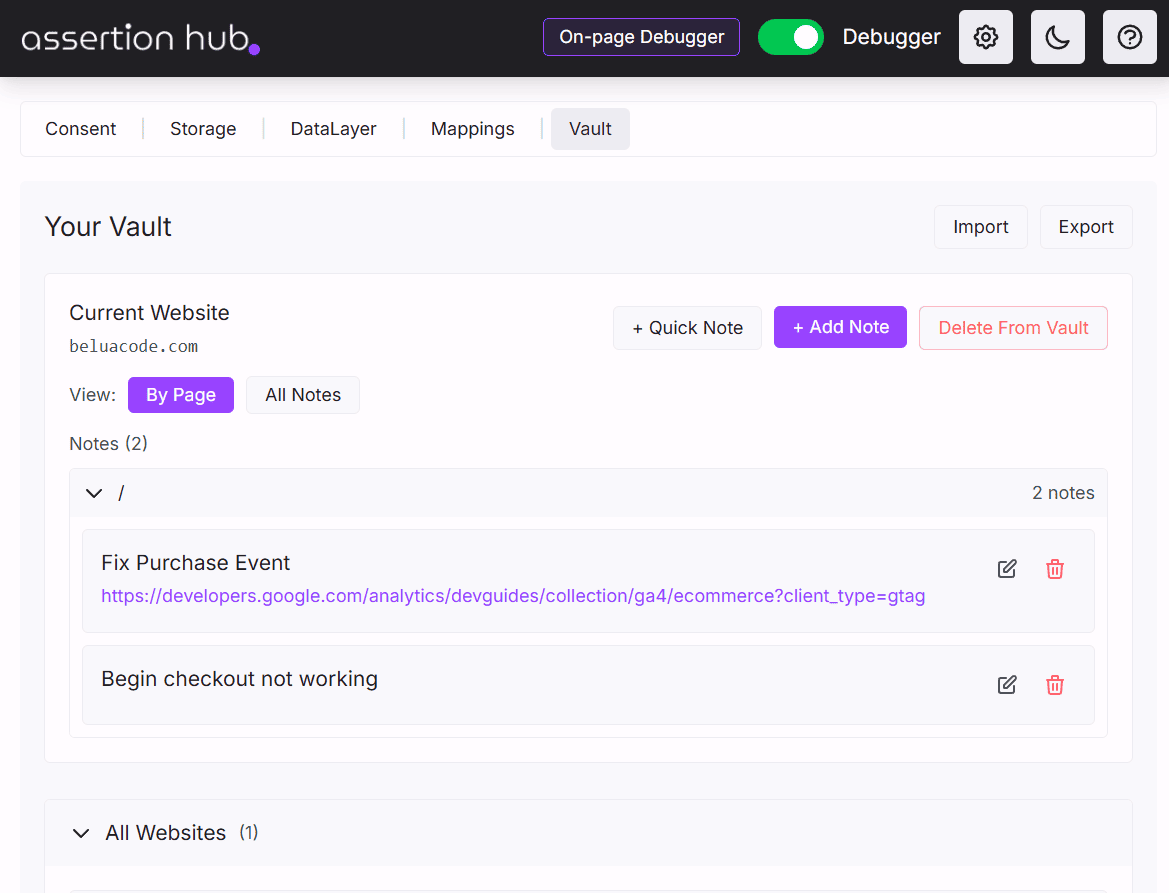
Site-organized notes
Notes in the Vault are grouped by website hostname. You add a website once and all notes for that domain stay together. This makes it straightforward to manage ongoing implementation audits across multiple clients or projects without notes from one site mixing with another.
Within each site, notes can be tied to a specific page URL. When you add a note on a product page, it is linked to that URL so you always know exactly where the finding came from, even weeks later.
Note types and tags
The Vault supports two note formats depending on how much detail a finding warrants:
- Quick notes: a single line, useful for flagging something to revisit or logging a fast observation during a test walk-through
- Structured notes: include a title, a body, a URL reference, and tags. Use these for findings that need context, steps to reproduce, or links to related documentation
Tags let you group notes across sites and pages. Tag something ecommerce, consent, or missing-parameter and you can pull up all notes with that tag regardless of which site they belong to.
Browsing your notes
The Vault offers two views:
- By Page: a hierarchical view that shows sites, then pages within each site, then the notes attached to each page. Good for reviewing everything found during an audit of a specific site
- All Notes: a flat list of every note across all sites, with page references shown alongside each entry. Good for searching across your full library
Both views support filtering and search so you can find a specific note without scrolling through everything.
Collaboration
The Vault is designed to work naturally in team settings without requiring any additional tooling or accounts.
If your team works on a shared browser profile, the Vault is shared automatically. Everyone on the profile can read and add to the same set of notes. This works well for teams that do implementation audits together or pass a browser session between QA analysts: one person can start a session, add findings as they go, and another can pick up from the same browser and continue contributing without any handoff step.
For teams on separate machines or separate browser profiles, the export and import functions handle the handoff. Export the Vault from one machine, send the JSON file to a colleague, and they import it into their own instance. This is useful for handing off an audit mid-way through, onboarding a team member to an existing implementation review, or sharing a completed audit with a client.
Because nothing is stored centrally, there is no account to manage, no permissions to configure, and no data leaving the browser in the background. The collaboration is entirely under your control.
Import and export
Export your entire Vault as a JSON file at any time. This file can be:
- Imported on another machine to continue a debugging session from a different browser or computer
- Sent to a colleague who can import it into their own AH Debugger instance, making it easy to hand off an implementation audit or share findings from a client engagement
- Kept as a backup of your accumulated notes
Privacy
All Vault data lives entirely within your browser and extension storage. No data is ever sent to a server, synced to a cloud account, or collected by AH Debugger.
Ready to explore more of AH Debugger? Read What is AH Debugger →
Frequently Asked Questions
Is there a way to save notes during an analytics debugging session without leaving the browser?
Can I share Vault notes with a colleague?
Is Vault data stored in the cloud?
How do I back up my Vault?
Can I use the Vault across multiple websites?

Co-founder of BeluaCode and AssertionHub
Analytics Developer specialised in tracking implementation,
implementations QA, tag management and highly customised solutions
when standard tools don't fit.
Runs
BeluaCode
as an implementation agency helping other experts when things get
too complex and
AssertionHub
to automate tracking validation on Analytics events.