
GTM DataLayer Viewer and Simulator Chrome Extension: Inspect and Test Events
- The DataLayer Simulator lets you push synthetic events into GTM without modifying your site code or waiting for a developer.
- Use it to test GTM tags and triggers in isolation by simulating purchase, add_to_cart, or any custom event directly.
- Switch between JSON and form input modes depending on how complex the payload is.
- The viewer shows real and simulated pushes in a single log, so you can compare expected vs actual structure side by side.
What is the DataLayer tab
The DataLayer tab in AH Debugger is a dedicated interface for working with the GTM dataLayer directly from your browser. It does two things: it gives you a real-time viewer of every dataLayer.push() captured during your session, and it includes a built-in simulator that lets you push synthetic events without touching your codebase.
Both work together. Browse the page and watch real pushes appear in the viewer. When you need to test a specific event structure, open the simulator, push it, and see the result immediately in the same view.
DataLayer Viewer
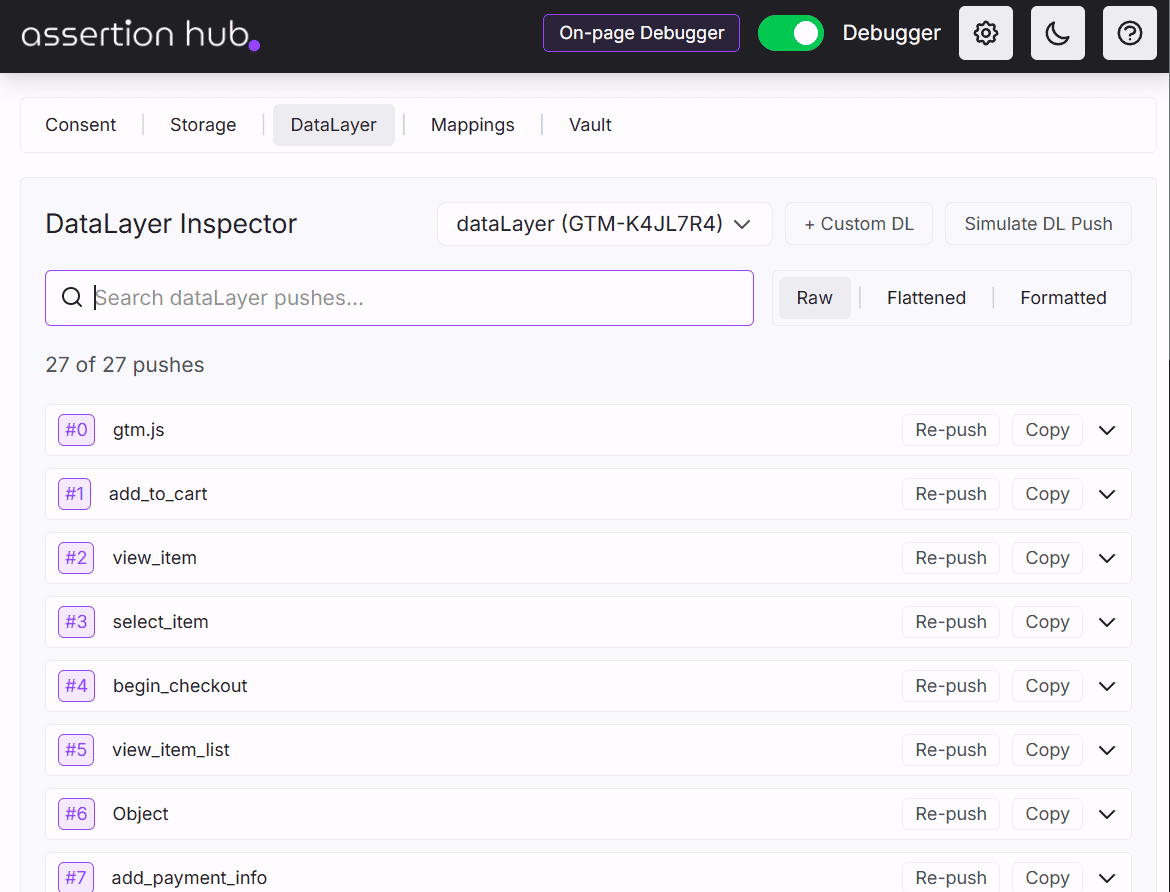
The DataLayer Viewer captures every dataLayer.push() in real time and displays it in a dedicated, searchable list. Open the DataLayer tab in the extension popup and pushes start appearing the moment the debugger is active.
Automatic container detection
AH Debugger detects all GTM containers present on the page and maps each one to its associated dataLayer automatically. This includes pages with multiple GTM containers running simultaneously and setups that use a non-standard dataLayer name instead of the default window.dataLayer. Every push is labeled with its container ID so you always know which container it belongs to. No configuration needed.
Real-time capture
Every push is intercepted before GTM processes it, so you see the raw data exactly as it was sent. Each captured push shows the event name, the container ID, a timestamp, and a sequential push index, giving you an accurate chronological record of everything that happened during the session.
This also works on Single Page Applications. AH Debugger re-initializes its observer on navigation events, so pushes are never missed during client-side page transitions.
View modes and search
Switch between three view modes for each push:
- Raw: the original JavaScript object exactly as it was pushed, fully expandable
- Flattened: a simple key-value list, easy to scan for a specific parameter
- Formatted: syntax-highlighted display with structured nesting, useful for complex ecommerce pushes
A search field filters all captured pushes by any key name or value across the full session. You can copy any push to clipboard in one click.
DataLayer Simulator
Testing GTM tag behavior against a new event structure normally means deploying to a staging environment, writing console commands, or guessing from GTM Preview mode, which shows what your current tags do but not how they would respond to an event structure that has not been pushed yet.
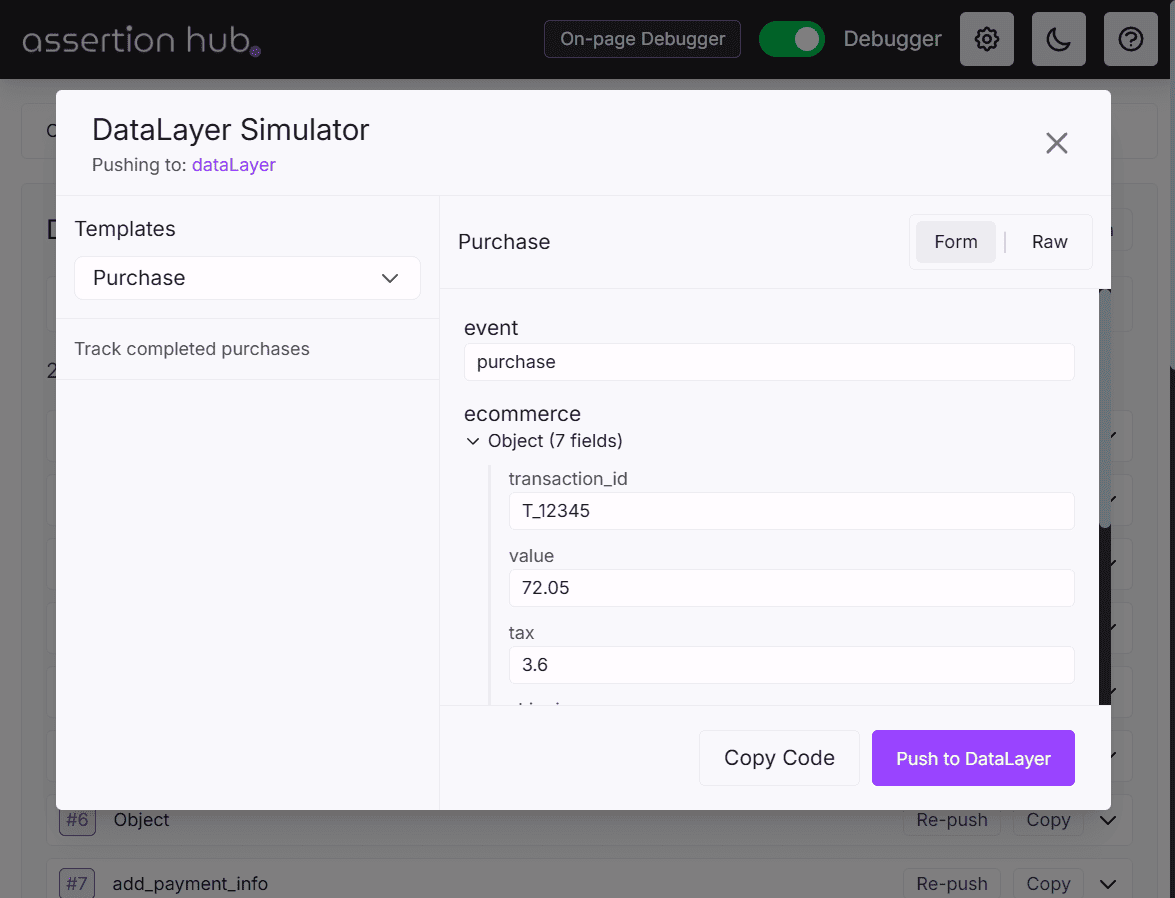
The DataLayer Simulator removes that dependency. Click Simulate DL Push, pick from a set of pre-created event templates, or switch to the Raw section to write or modify a custom JSON event. Push it, and GTM processes it exactly as it would a real push from your site: triggers evaluate, tags fire, and analytics requests go out. The only difference is that the push originates from the extension instead of your code.
This is especially useful for ecommerce implementations, where the difference between a working and broken purchase event is often a missing items array, a mistyped transaction_id, or a currency value in the wrong format.
How to use the DataLayer Simulator
Step 1: Install and activate AH Debugger
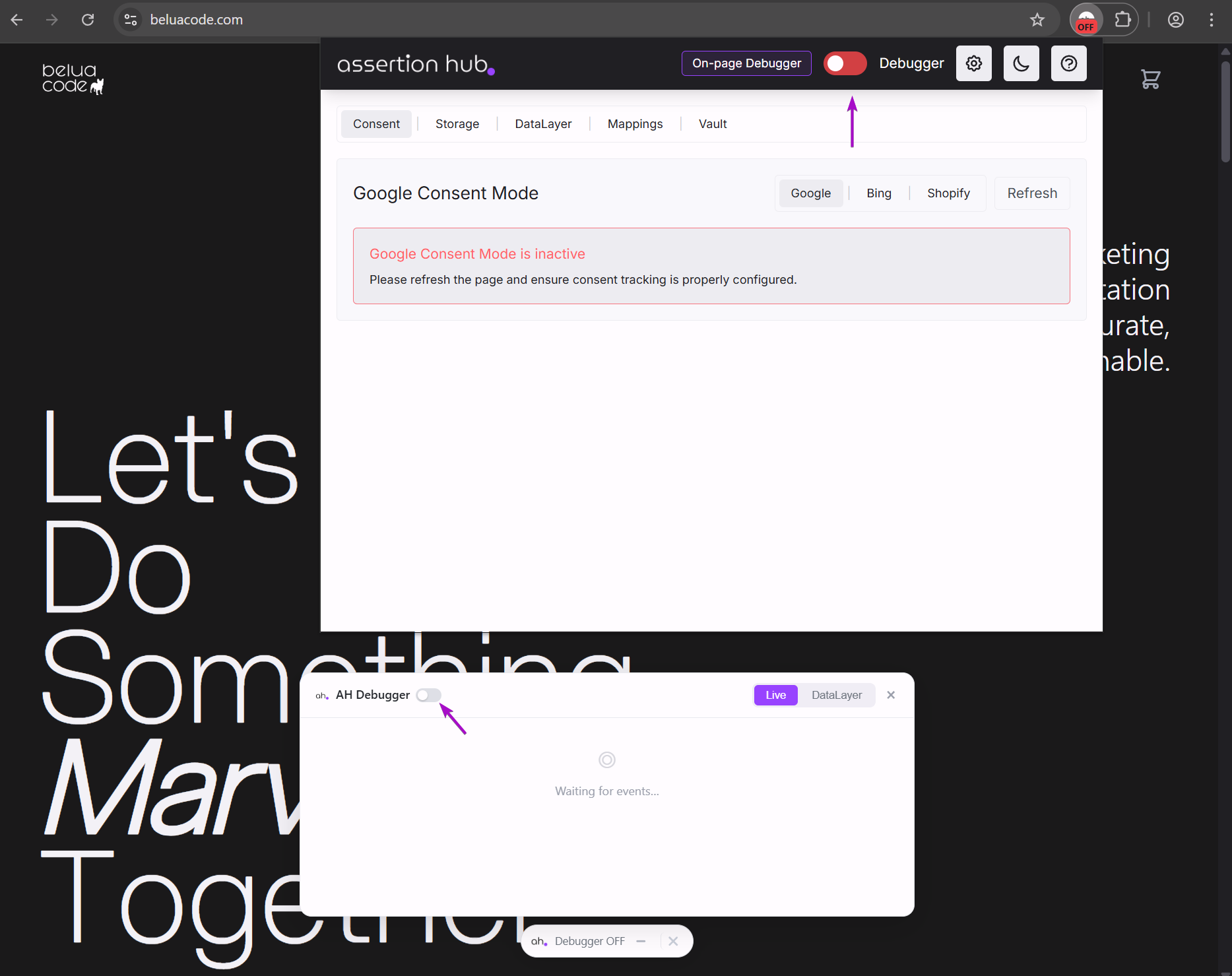
Install AH Debugger from the Chrome Web Store. Click the extension icon in your Chrome toolbar and toggle the debugger on for the current tab.
Step 2: Open the DataLayer tab
Click the AH Debugger icon to open the popup, then select the DataLayer tab. AH Debugger automatically detects all GTM containers on the page. Any pushes that fire as you browse appear immediately in the viewer.
Step 3: Choose a template or build a custom event
Click Simulate DL Push. The simulator opens with pre-created templates covering the most common event types: page views, ecommerce events like purchase, add_to_cart, and view_item, and more. Select any template and push it immediately without writing anything.
To adjust the event in detail or start from a custom structure, switch to the Raw section. This gives you a full JSON editor where you can modify any template or write an event from scratch. For example, a GA4 purchase event in the raw section looks like:
{
  "event": "purchase",
  "ecommerce": {
    "transaction_id": "T_12345",
    "value": 99.99,
    "currency": "USD",
    "items": [
      {
        "item_id": "SKU_001",
        "item_name": "Test Product",
        "price": 99.99,
        "quantity": 1
      }
    ]
  }
}
Click Push to DataLayer. The event is pushed immediately and appears in the viewer alongside your real session pushes. GTM evaluates it and any matching tags fire.
Step 4: Inspect the results
Observe the resulting analytics requests in the Console Logs, the Overlay, or the DevTools panel; all update in real time. Expand any request in the DevTools panel to inspect its full parameters and POST body. If Built-in Checks detect an issue such as a missing transaction_id, a malformed items array, or an absent consent signal, they surface it directly in the panel without any additional setup.
Common use cases
Pre-deployment QA for new events
Before a developer deploys a new custom event, use the simulator to push that event with the exact structure they plan to implement. Verify that GTM triggers fire correctly, the right tags activate, and the analytics requests match your tracking specification. Any mismatch is caught before it reaches production.
Testing ecommerce tag logic
Ecommerce implementations are the most common source of analytics bugs. Push synthetic add_to_cart, view_item, begin_checkout, and purchase events with both complete and intentionally incomplete data to verify that your GTM tags handle edge cases correctly: missing items arrays, zero-value transactions, multiple quantities in a single purchase.
Reproducing bugs without a developer
When a stakeholder reports that a specific event is not tracking correctly, you can reproduce the exact reported event structure using the simulator without waiting for a developer to deploy a change. This lets you isolate whether the issue is in the dataLayer push structure, in the GTM trigger configuration, or in the tag itself.
Onboarding and training
The simulator makes it easy to demonstrate GTM tag behavior to team members or clients without requiring access to a staging environment or a developer’s help. Push any event on any live page and walk through what happens in real time.
Ready to explore more of AH Debugger? Read What is AH Debugger →
Frequently Asked Questions
How do I test GTM tags without deploying code?
How do I push a dataLayer event from the browser without modifying the website?
Is there a Chrome extension to simulate dataLayer events?
How do I test GA4 ecommerce events before going live?
Will a synthetic dataLayer push trigger real GTM tags?

Co-founder of BeluaCode and AssertionHub
Analytics Developer specialised in tracking implementation,
implementations QA, tag management and highly customised solutions
when standard tools don't fit.
Runs
BeluaCode
as an implementation agency helping other experts when things get
too complex and
AssertionHub
to automate tracking validation on Analytics events.