
AH Debugger - Chrome Extension Reference
What is AH Debugger?
AH Debugger is a free Chrome extension for analytics engineers, developers, and QA teams. It gives you complete visibility into what is being tracked on any webpage: analytics events, GTM dataLayer pushes, consent signals, cookies, and browser storage, all in one place and in real time.
It works on any website you visit. No account is required, no script installation is needed, and no code changes are necessary on the sites you debug.
Installation
- Open the AH Debugger page on the Chrome Web Store.
- Click Add to Chrome.
- Confirm the installation when prompted.
The AH Debugger icon appears in your Chrome toolbar. You are ready to start debugging.
Activating the Debugger
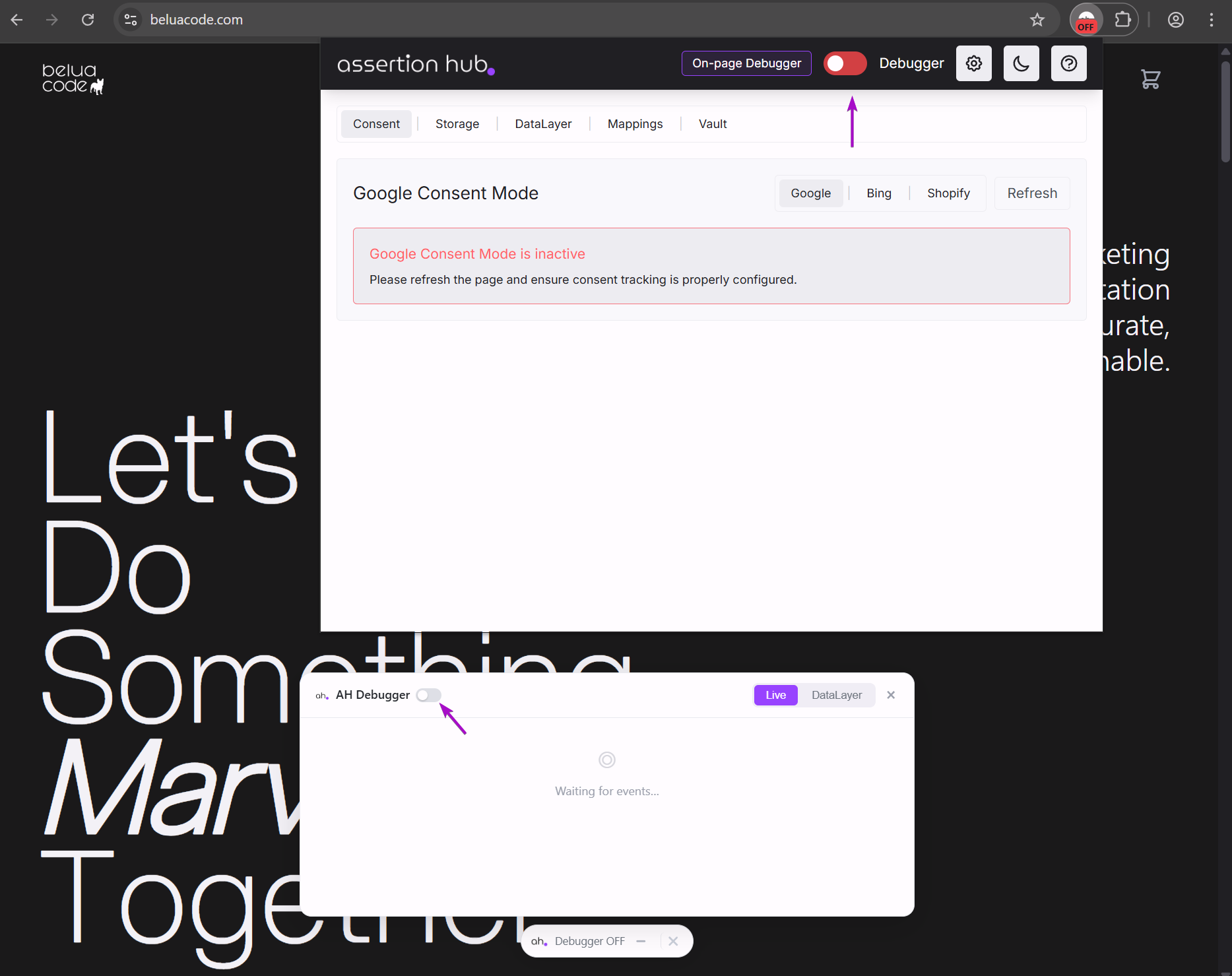
Click the AH Debugger icon in your toolbar to open the extension popup. Inside the popup, toggle the debugger on for the current tab.
That single toggle activates everything:
- Console logs begin appearing immediately in your browser console (
F12→ Console): styled dataLayer push logs and analytics request logs in real time - The Overlay can be enabled from the popup. It is a floating panel that sits on top of the page so you can monitor events without keeping DevTools open
- The DevTools panel becomes available. Open DevTools (
F12), click the double arrow icon in the top-right of DevTools, and select AH Debugger from the dropdown - The popup tabs (DataLayer, Consent Mode, Browser Storage, Vault, Mappings) are all active and updating as you browse
Console Logs
With the debugger active, two distinct types of styled logs appear in your browser console (F12 → Console tab) in real time.
DataLayer Push Logs
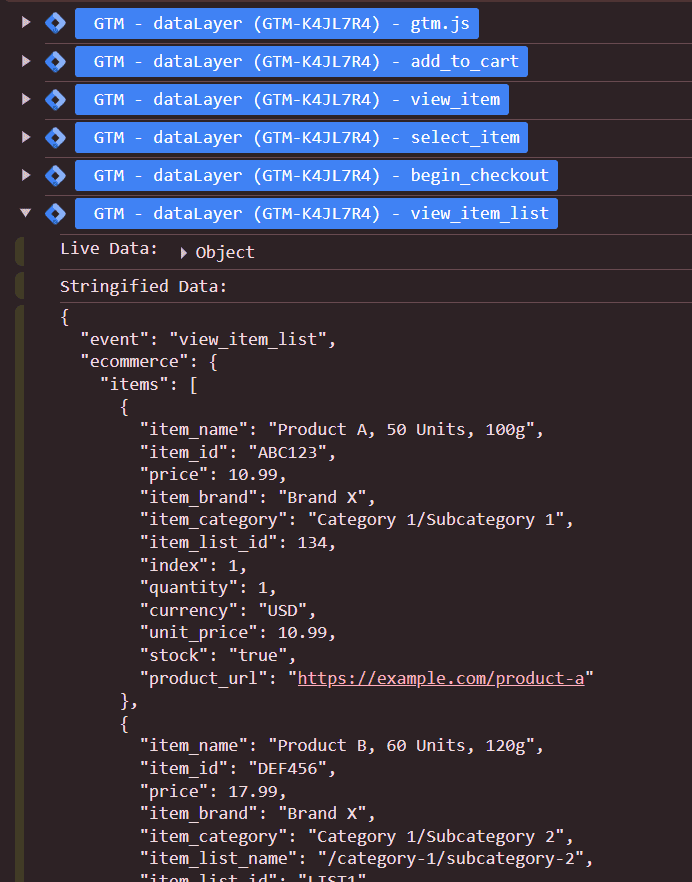
Every dataLayer.push() call is intercepted before GTM processes it and logged as a collapsible group. Each group shows:
- A GTM logo badge with the dataLayer name and container ID
- The event name (or “Custom Object” if no
eventkey is present) - Live Data: the raw JavaScript object, expandable in the console
- Stringified Data: a clean JSON snapshot you can copy
Works on Single Page Applications. Navigation between pages does not cause any pushes to be missed.
Analytics Request Logs
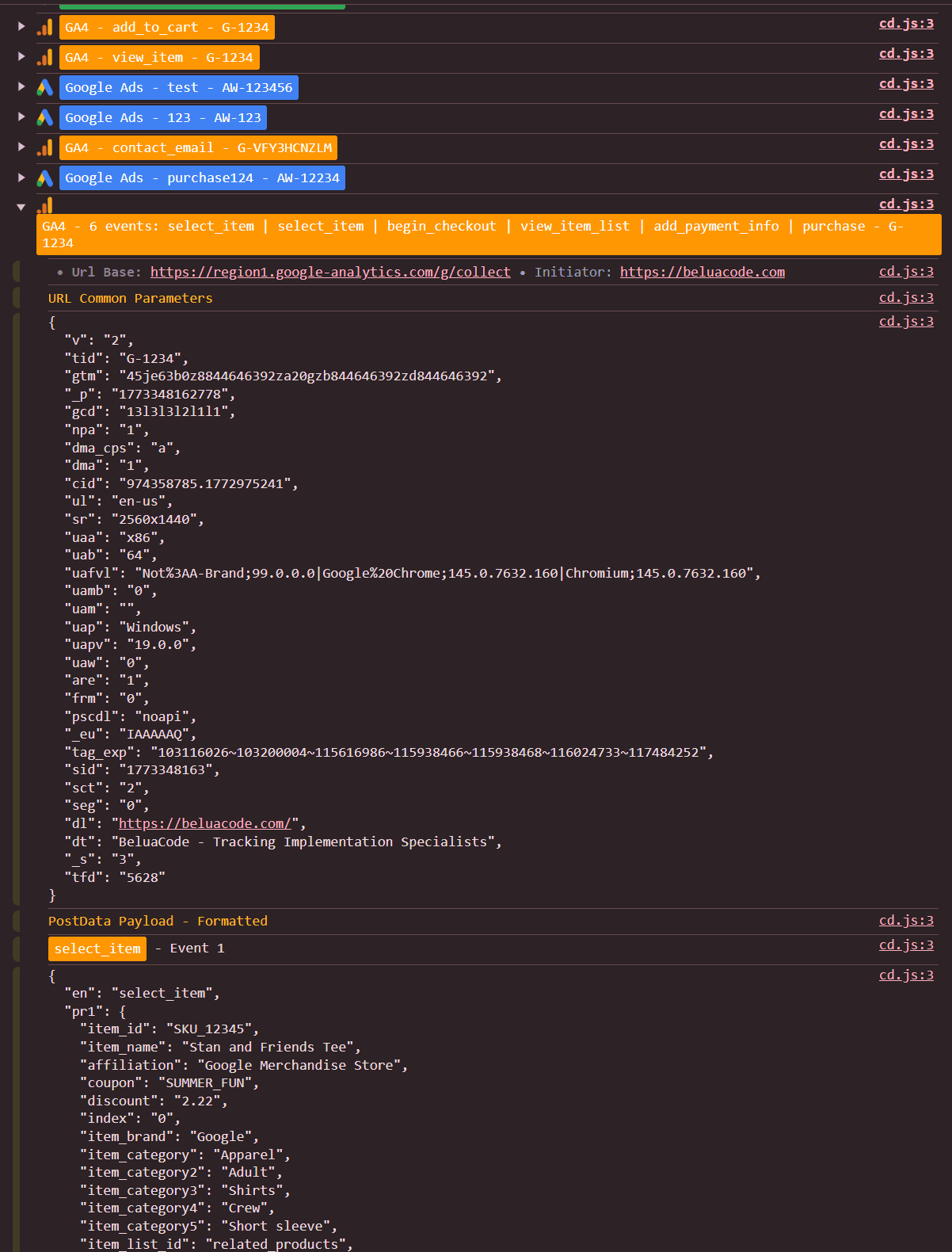
Every analytics network request that fires (GA4, Facebook, Adobe, Bing, TikTok, Pinterest, and more) is logged with:
- A vendor logo badge color-coded by platform
- The event name and account ID
- URL base and initiator
- URL Parameters formatted as a readable list
- PostData: the POST body if present, with GA4 batched events broken into individual hits
Requests returning HTTP 4xx or 5xx errors appear with a red badge and the status code.
Both log types can be toggled independently in the extension settings (click the settings icon in the top-right of the popup).
Console Overlay
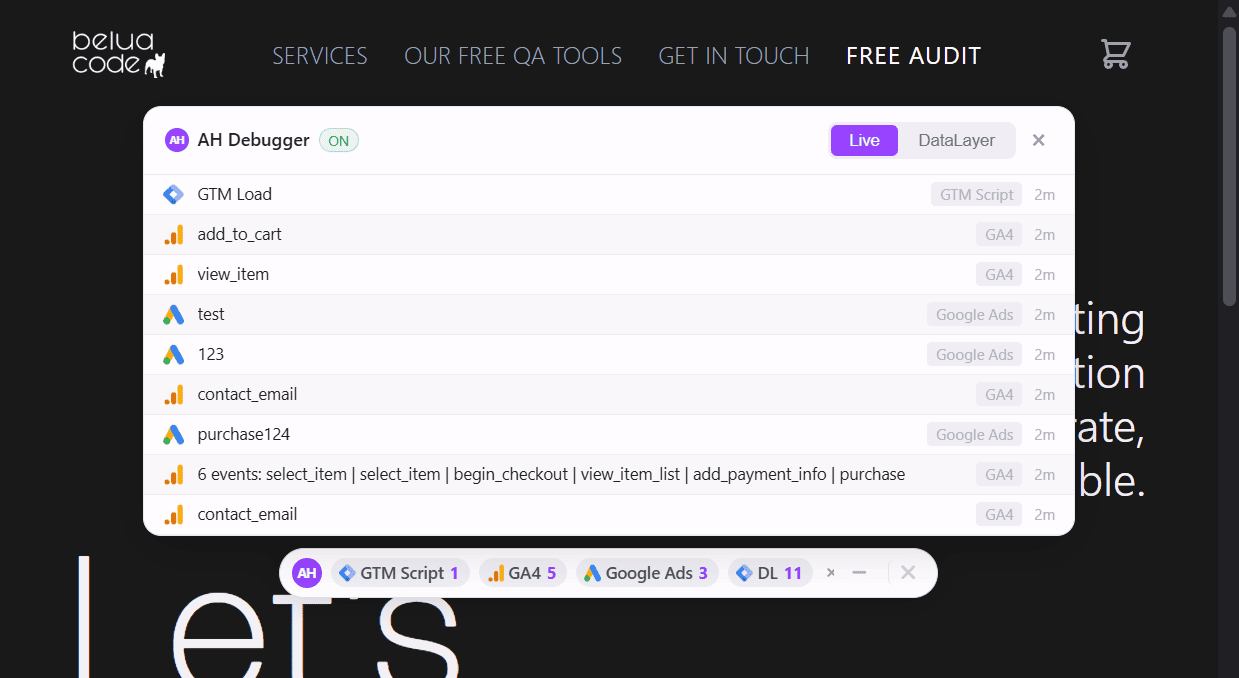
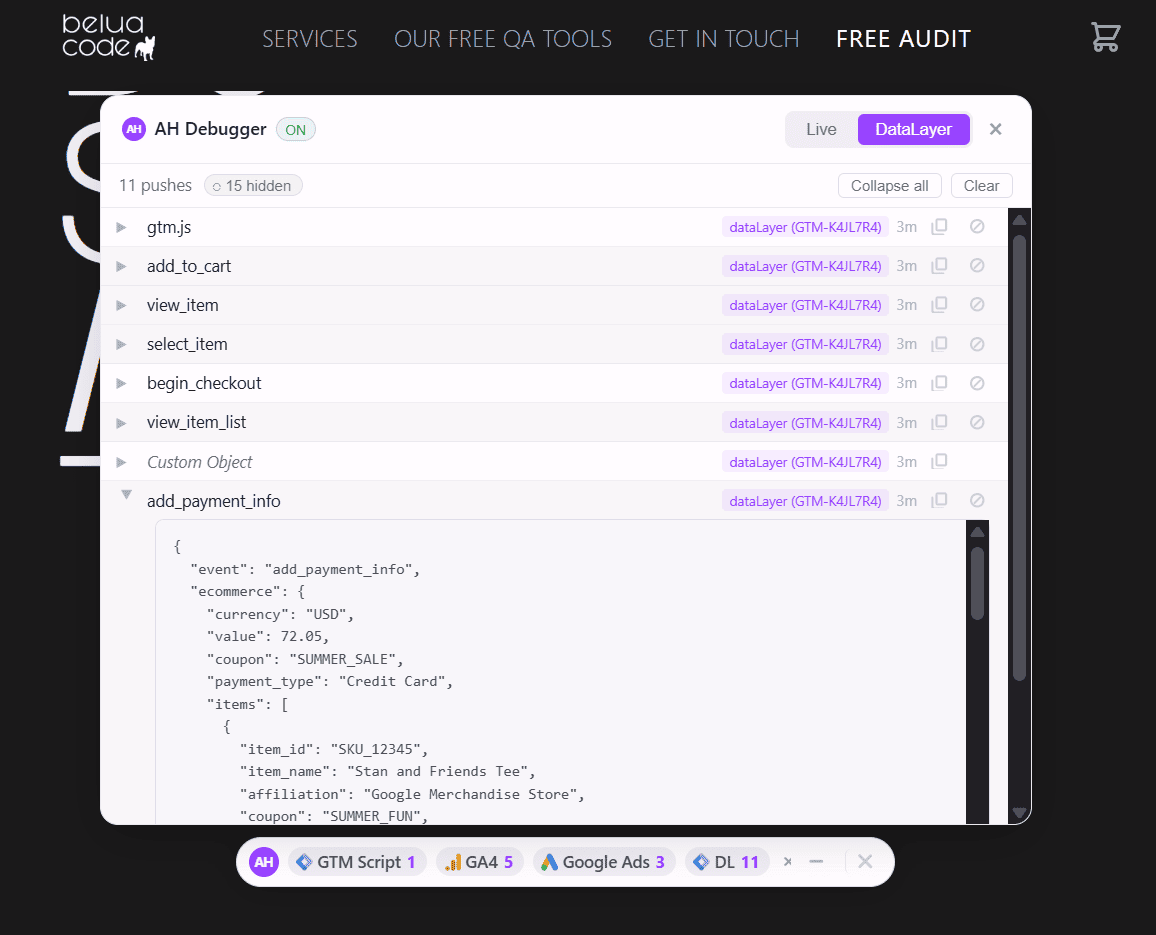
The Overlay is a floating panel that sits on top of any page and gives you a live feed of what is being tracked, without opening DevTools. Toggle it on from the extension popup.
- Live requests feed: every analytics hit appears instantly with vendor icon, event name, and error highlighting. Shows the last 50 events with timestamps.
- DataLayer feed: switch tabs inside the overlay to see every dataLayer push in real time, with the GTM container ID and an expandable JSON preview.
- Event filtering: hide specific events you do not care about (like
gtm.scrollorgtm.dom) from the overlay’s built-in exclusion panel.
You can drag the overlay anywhere on the page, minimize it to a compact pill, or hide it and reopen it from the popup without losing your session.
DevTools Panel
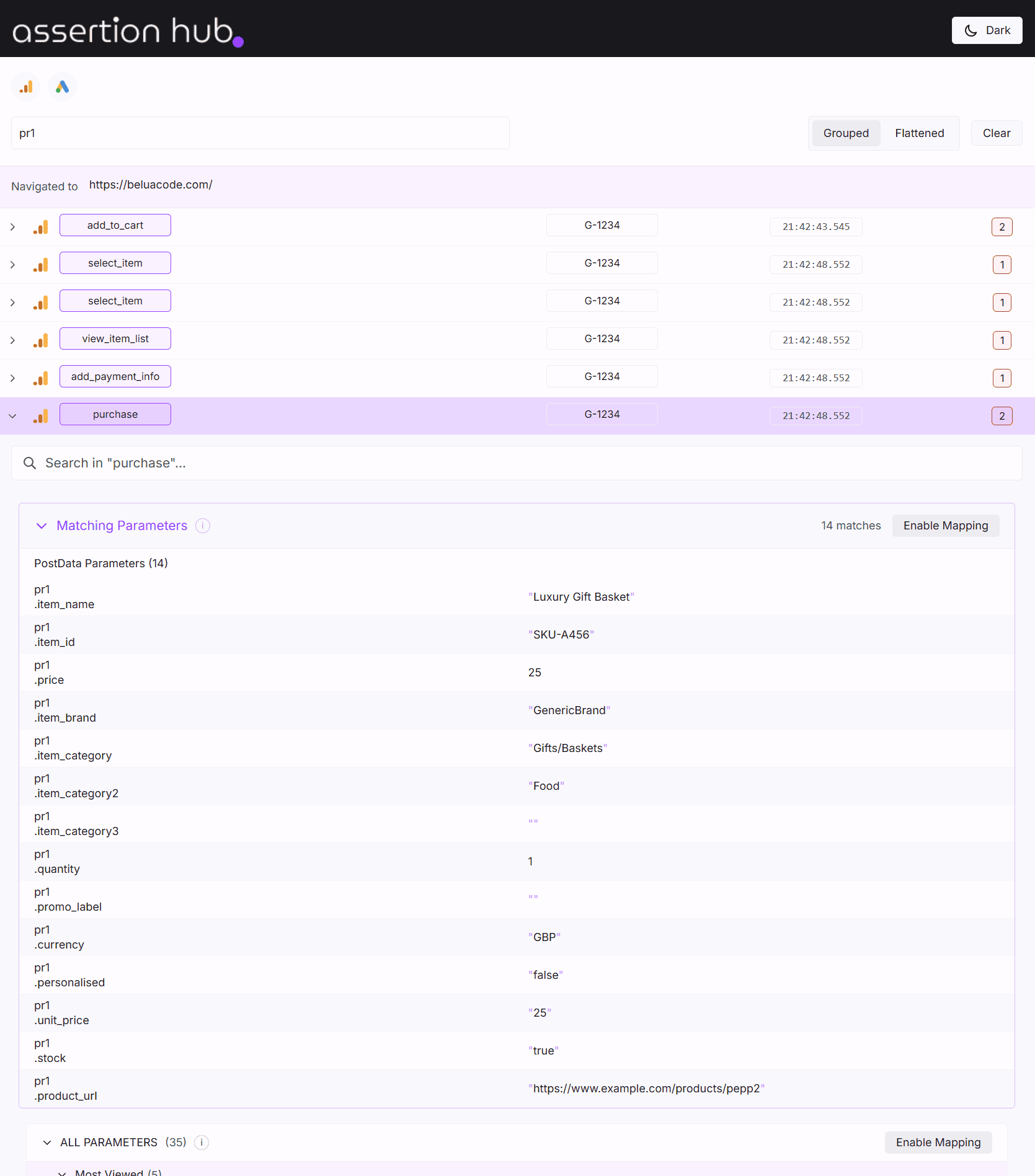
Open the DevTools panel by pressing F12, clicking the double arrow icon in the top-right corner of DevTools, and selecting AH Debugger. This is the main interface for in-depth debugging sessions.
- Full request table: every intercepted analytics request listed with vendor, event name, timestamp, status, and error indicators. Paginated at 100 requests per page.
- Grouped and flattened views: toggle between requests grouped by event name or a flat chronological list.
- Global search: filter across all vendors and all collected data by any parameter name or value.
- Per-vendor filtering: show only GA4, only Facebook, only Adobe, or any combination.
- Full request inspection: expand any request to see its complete URL, all query parameters, POST body, and error details. Batch requests are broken apart so you can inspect each hit individually.
- Built-in Checks: automated validation runs on your session data and surfaces issues directly in the panel.
DataLayer Viewer and Simulator
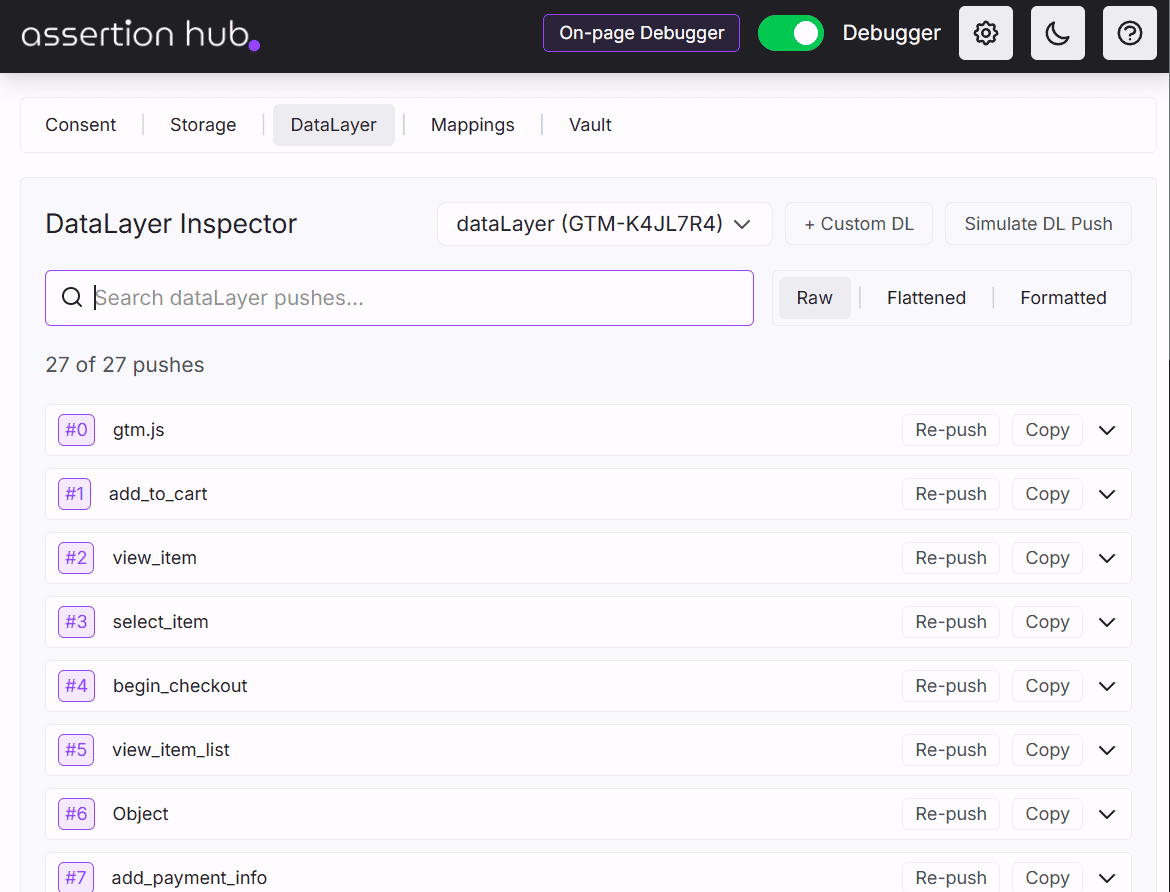
Access the DataLayer tab from the extension popup. This tab connects directly to the GTM containers on the current page.
DataLayer Viewer
- Automatic container detection: AH Debugger finds all GTM containers on the page and maps each one to its associated dataLayer, including non-standard dataLayer names and setups with multiple containers.
- Real-time push capture: every
dataLayer.push()is captured with a timestamp and sequential index. - Three view modes: Raw (original structure), Flattened (key-value pairs, easy to scan), Formatted (syntax-highlighted display for complex objects).
- Search: filter pushes by any key or value across the full session.
- Copy to clipboard: copy any push as JSON in one click.
DataLayer Simulator
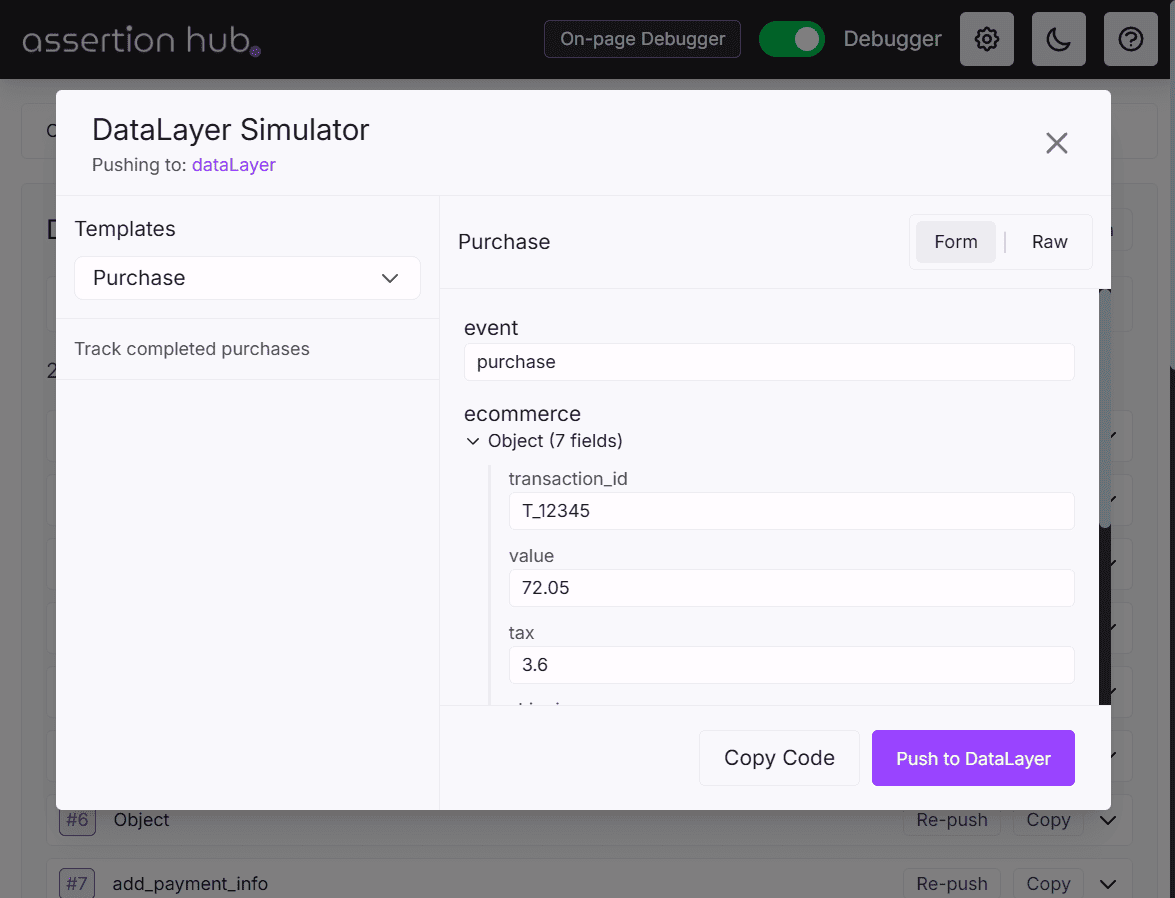
The same tab includes a built-in simulator. Click Simulate DL Push and choose from a set of pre-created event templates (page_view, purchase, add_to_cart, and others) or go to the Raw section to write a fully custom event. GTM processes the simulated push exactly as it would a real one from your site, so you can test how your tags respond to a specific event structure before any code is deployed.
Consent Mode Checker
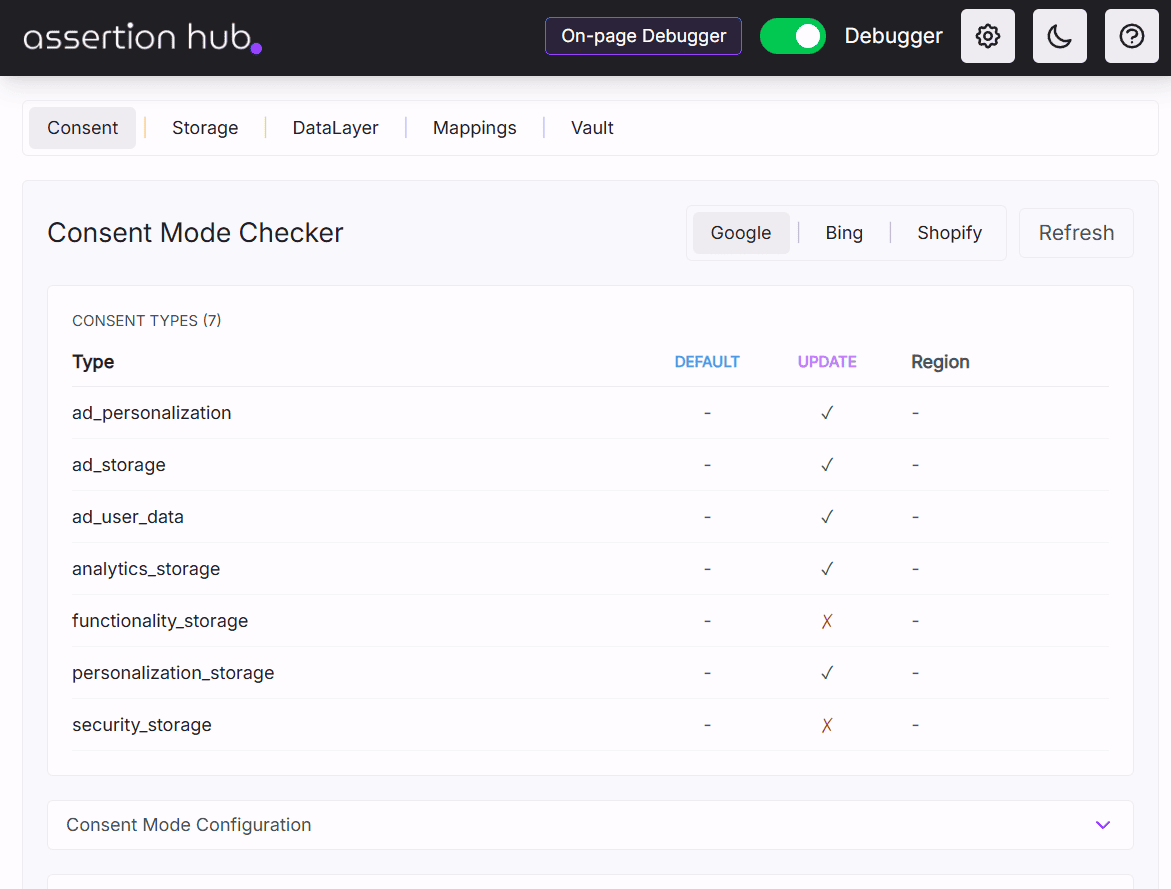
Access the Consent Mode tab from the extension popup for a dedicated audit view of any consent implementation.
- Google Consent Mode: see the current state of all consent types (
analytics_storage,ad_storage,ad_user_data,ad_personalization,functionality_storage,personalization_storage,security_storage), the full consent command history, and GTM container configuration. - Cross-domain tracking: verify cross-domain measurement is configured correctly.
- Bing UET consent: monitor Bing’s consent state independently.
- Shopify consent: purpose-built detection for Shopify’s consent framework.
All consent data refreshes on demand, so you can re-check after a user accepts a consent banner.
Browser Storage Manager
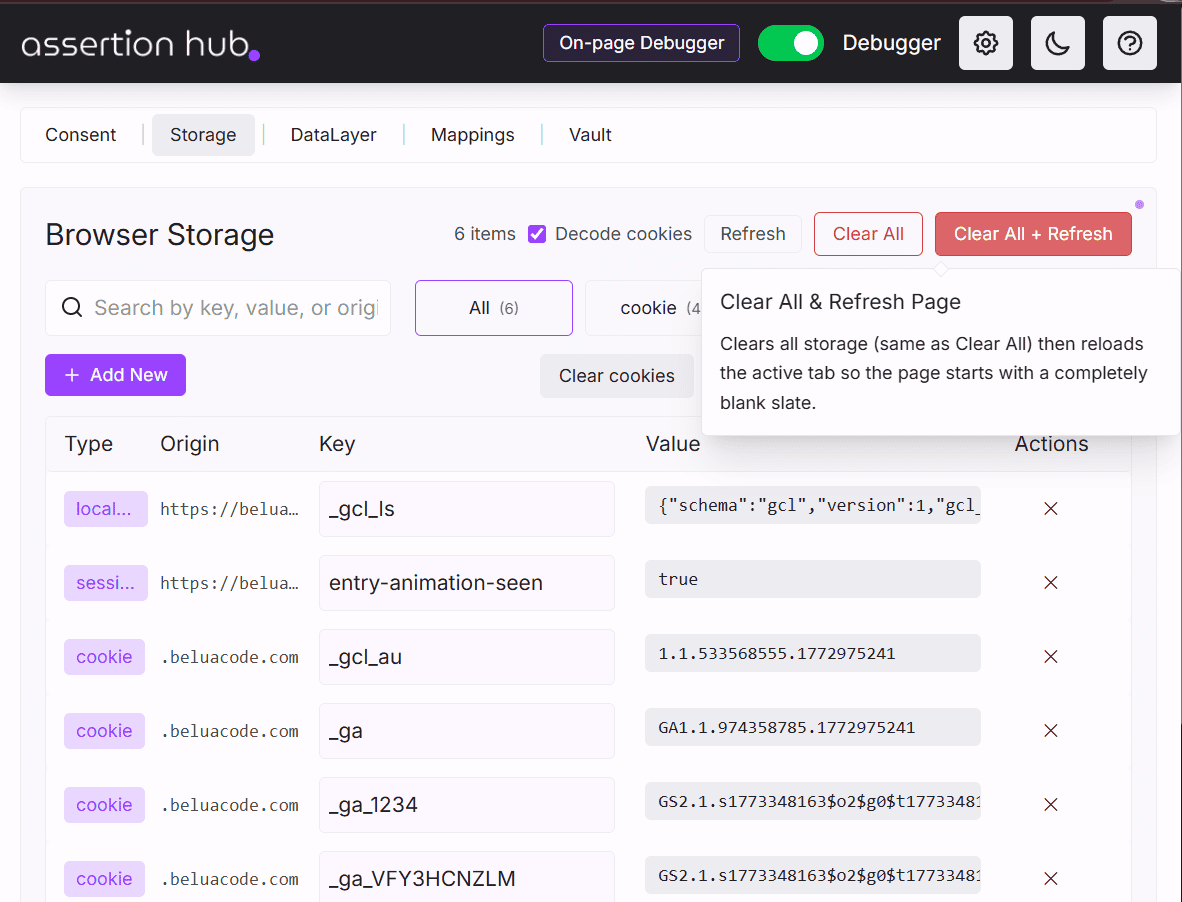
Access the Browser Storage tab from the extension popup for a read-write interface covering everything stored in the browser on the current page.
- Storage types: inspect and manage Cookies, LocalStorage, and SessionStorage in one place.
- Add, edit, and delete: create new items, edit values inline, delete individual entries, or wipe an entire storage type in one click.
- Search and filter: search across all stored items by key or value.
- Base64 decoding: toggle automatic Base64 decoding for cookie values. Useful for reading analytics and consent cookies that encode their data.
- Clear All: permanently deletes all cookies, localStorage, and sessionStorage for every origin on the page, including iframes.
- Clear All + Refresh: clears all storage and immediately reloads the page. Useful for testing a clean state, such as resurfacing a cookie consent banner, in one click.
Vault
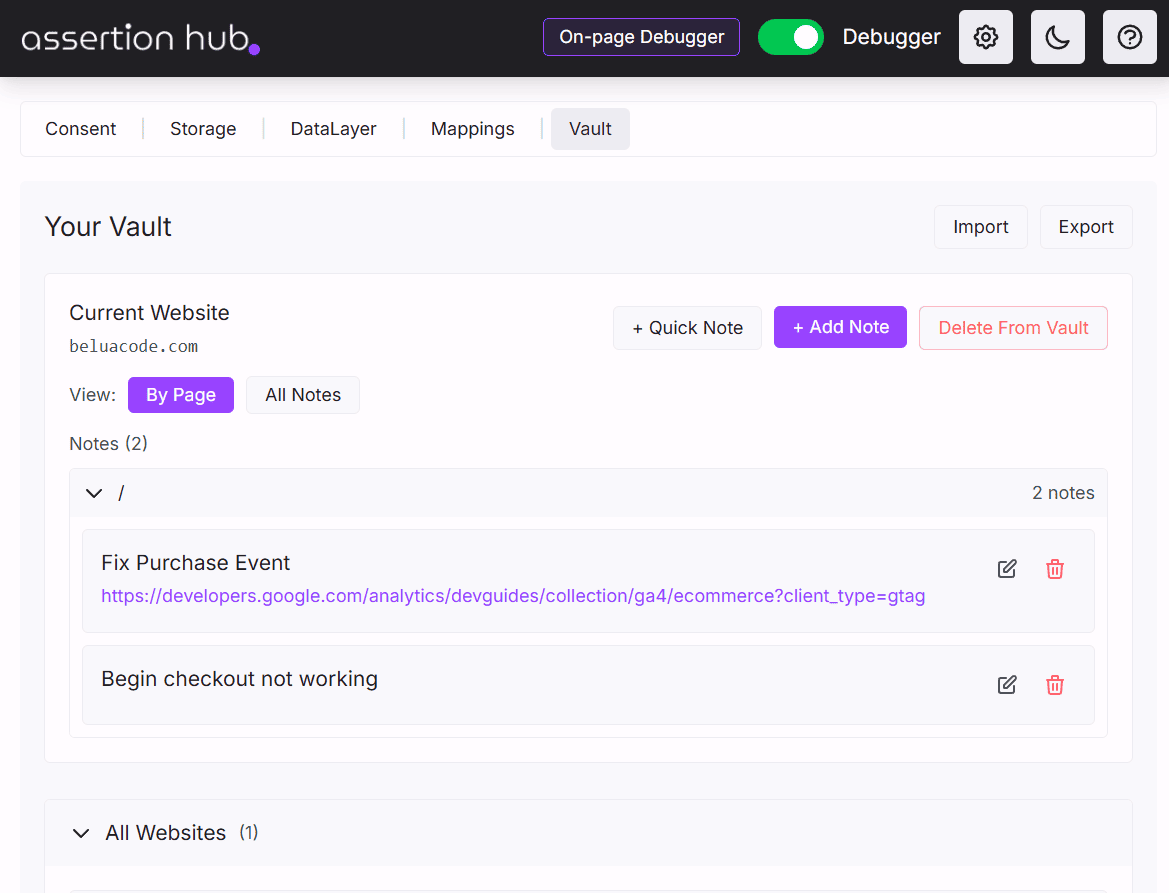
Access the Vault tab from the extension popup. The Vault is a persistent notes system for storing findings as you debug.
- Site-organized notes: notes are grouped by website hostname. All notes for a domain stay together.
- Per-page notes: notes can be tied to a specific page URL so you always know where a finding came from.
- Tags and full notes: add quick one-line notes or structured notes with a title, body, URL reference, and tags.
- Two browsing views: browse by Page (hierarchical per site) or All Notes (flat list with page references).
- Import and export: export your entire vault as a JSON backup and import it on another machine or share it with a colleague.
- Collaboration: if you use a shared browser profile, multiple people can contribute to and read from the same Vault.
No data leaves your browser. The Vault lives entirely in your browser extension storage.
Custom Mappings
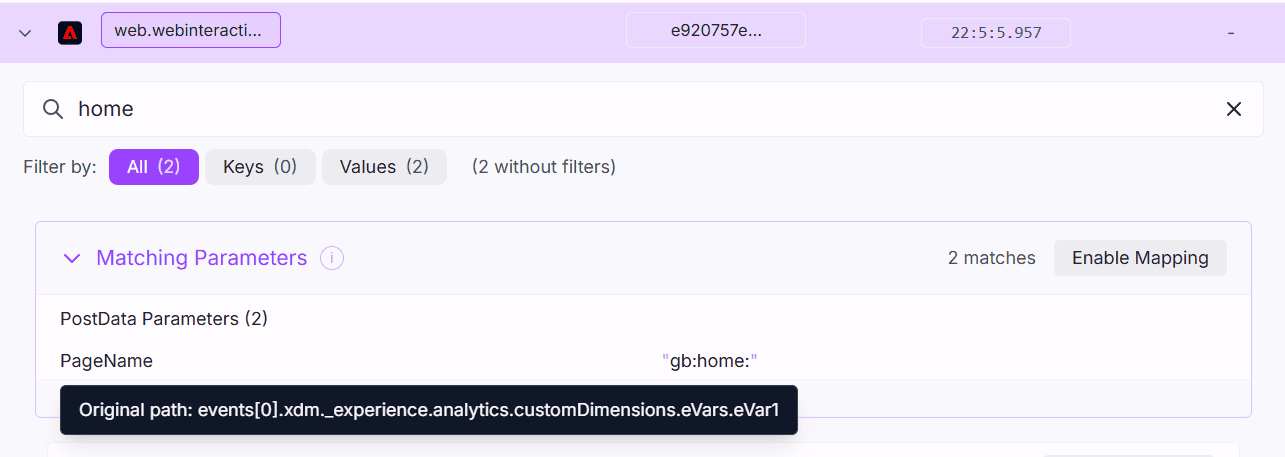
Access the Mappings tab from the extension popup. Analytics platforms use parameter names that do not always match what your team calls things internally. Custom Mappings lets you define aliases so the debugger displays your team’s terminology instead of the raw parameter names.
- Multi-vendor support: create mapping sets for GA4, Google Ads, Facebook, Bing Ads, Adobe Web SDK, Adobe Launch, and more.
- Site-specific configurations: different mappings for different websites, so your production and staging setups can have separate display rules.
- Import and export: share mapping configurations across your team as JSON files.
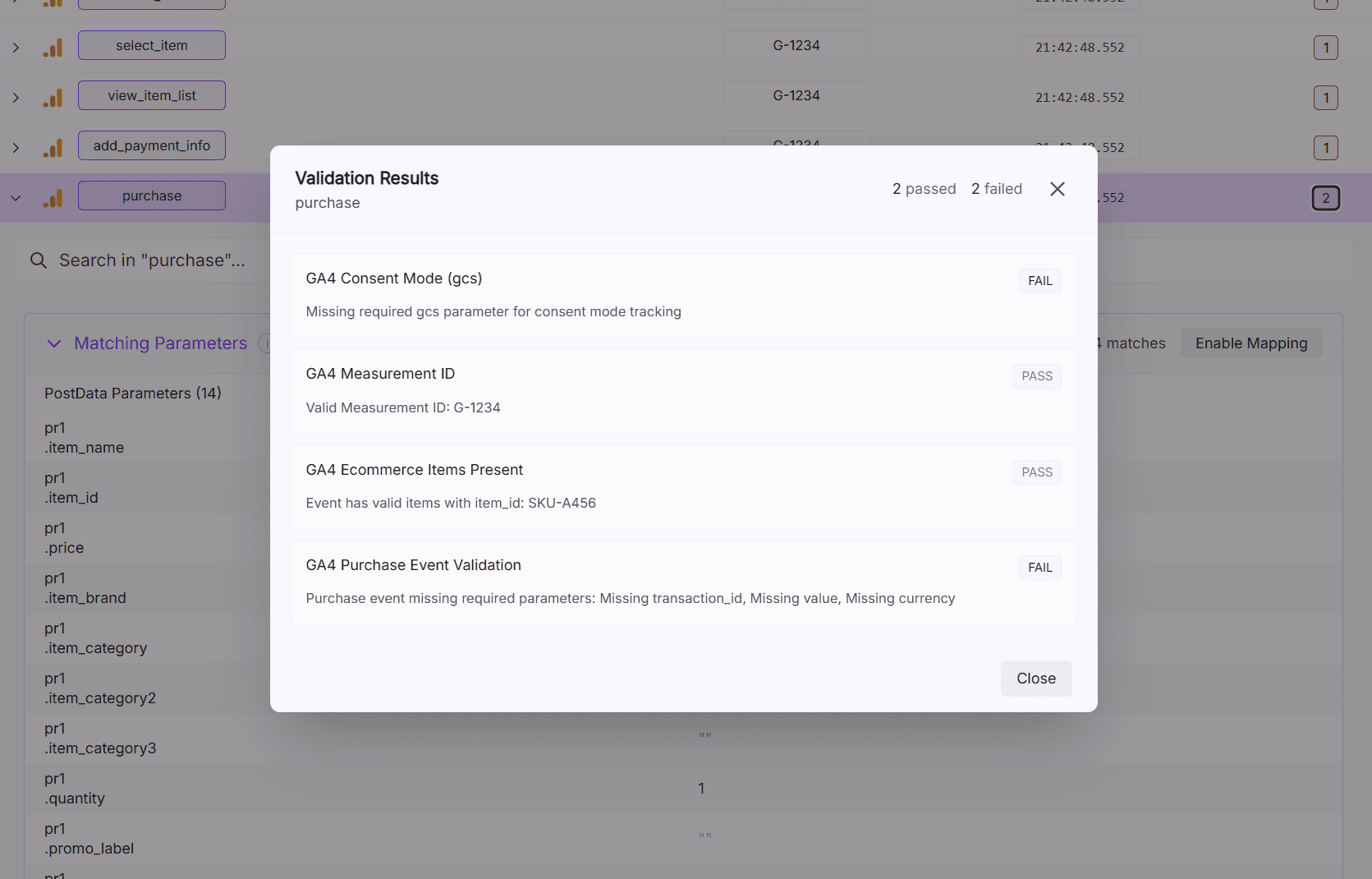
Built-in Checks
The DevTools panel runs automated validation on the requests collected during your browsing session and surfaces issues directly in the interface. No setup required. They run on every session.
Current checks include:
- Consent Mode signal presence: verifies the
gcsparameter exists on GA4 hits - Measurement ID format: validates the
tidparameter follows theG-prefix format - Ecommerce items array: flags ecommerce events (add_to_cart, purchase, view_item, and others) that are missing a populated
itemsarray - Purchase event completeness: checks that purchase events include
transaction_id,value, andcurrency
Results are shown with pass/fail status and severity levels (error vs warning).
Platform Coverage
AH Debugger intercepts and parses requests from all major analytics and advertising platforms:
| Platform | What is captured |
|---|---|
| Google Analytics 4 | All hits, event parameters, ecommerce data, consent signals |
| Google Tag Manager | DataLayer pushes, container configuration, consent commands |
| Google Ads | Conversion and remarketing tags |
| Facebook / Meta | Pixel events and custom data |
| Bing / Microsoft UET | UET events and consent state |
| Adobe Web SDK | XDM events |
| Pinterest Tag | Events and custom data |
Install AH Debugger from the Chrome Web Store